Willowdale · Empire Homes USA pilot · Dev9 · on-site guide, 8 October 2026
UAT script: the six tests and how to run them
The UAT script has 32 rows. Rows 2 to 9 are admin confirmations. Rows 10 to 33 repeat the same six user behaviours for five testers. This page gives the steps for each behaviour on desktop and on the phone, what to look for, and what is known not to work. Screens come from Dev9 as of 8 October.
Status of the items from your feedback
| Priority | Item | What happens | Effort |
|---|---|---|---|
| Resolved | Convert on the phone with a blank Prospect name | No Prospect was created when the name was left blank. After Save to Inquiry the app now says: tap the menu, Convert, and type the Prospect name. | Please retest with one conversion on the phone. |
| Resolved | Transcript chooser hidden after a meeting exists | The meeting status box now has a "Choose a saved transcript" button. One tap opens the chooser. | Phones that ran the app before the change need one full close and reopen. |
| Resolved | "Before end of year" read as a past date | The AI now receives the conversation date, so relative times count from the right day. | Please retest with one capture that says "before the end of the year". |
| For discussion | Which Home each persona sees, and the New Prospect button for users without the Sales Agent persona | Home is chosen by profile today. A single Home page by persona is the cleaner option. | For discussion. |
| For discussion | Commitment stage checks, queue-owned Inquiries and the AI, Jazmin-type users | Client decisions, not builds. | Conversation on site. |
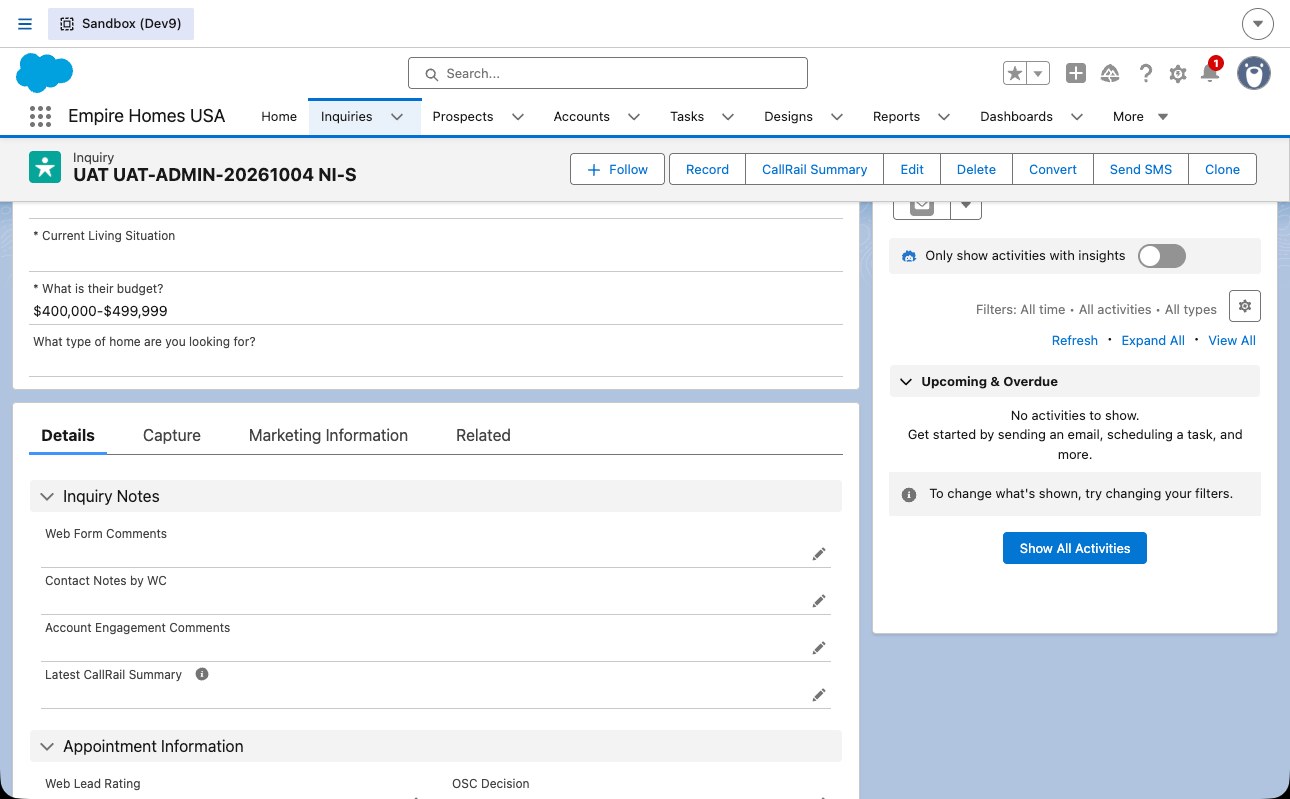
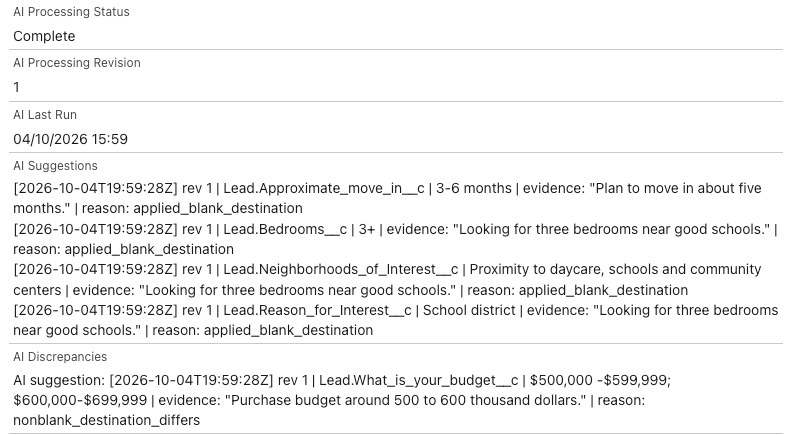
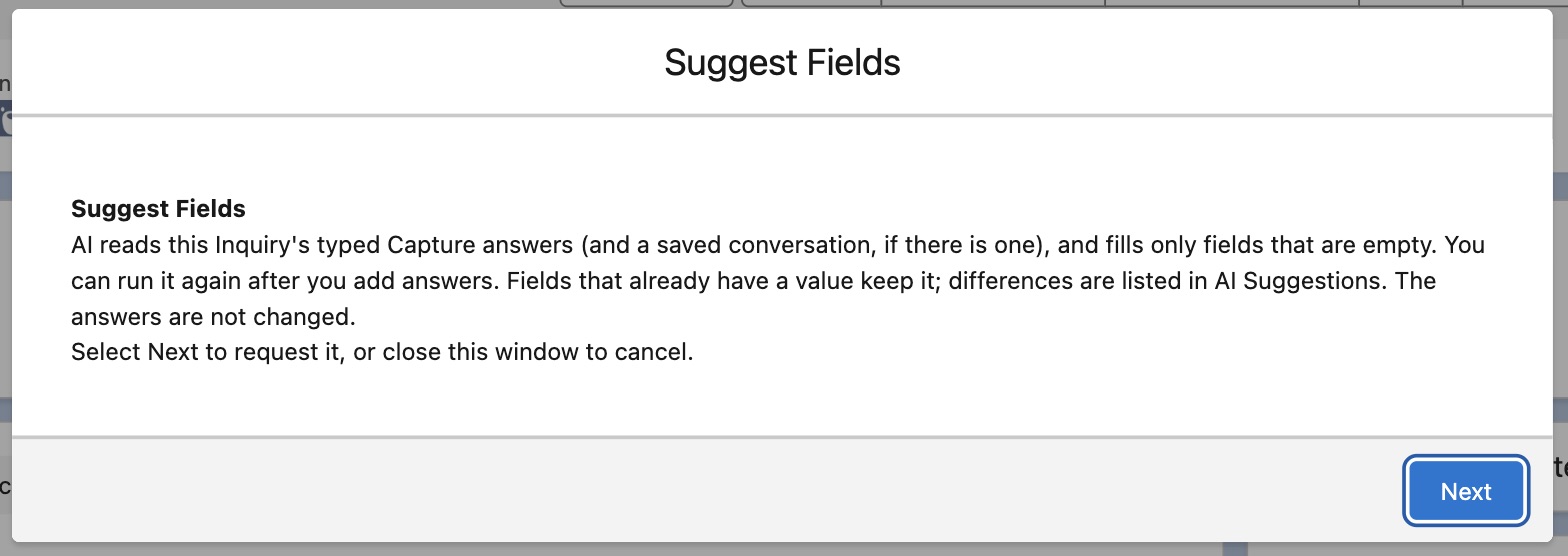
| New | Suggest Fields button on the Inquiry | An Inquiry whose Site is set after the answers never queued the AI. The new button asks for the AI fill at any time, and again after new answers. Filled fields are kept. | First run: open an Inquiry with answers, click Suggest Fields, confirm, wait a minute. |
| Resolved | Phone transcripts for Sales Agents | One missing standard permission stopped the save. It is now assigned to all pilot users. | Each phone user logs out and in once. |
Rows 4 and 8: Lauren recorded and saved a transcript from her own phone on 5 October, which confirms both the access and the app install.
Rows 2 to 9: what to show
| Row | Check | Answer on site |
|---|---|---|
| 2 | Users have the licences and permissions | Pilot users get one permission set group for their persona plus three standard Salesforce sets. Show the group in Setup. |
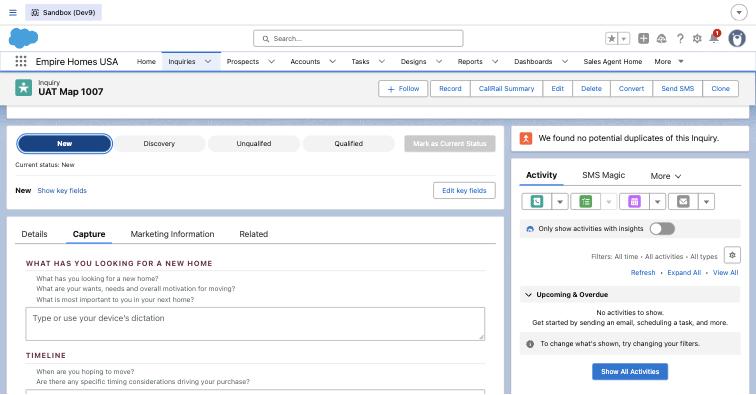
| 3 | New layout and fields available to US users | Open any US Inquiry in the Empire Homes USA app on desktop. The status path, the key fields and the Capture tab are the new layout. |
| 4 | Required access | Confirmed by Lauren's recording on 5 October and by the Sales Agent test user on 7 October. |
| 5 | Capture opens the open text boxes | Capture tab on the Inquiry and on the Prospect. Eight boxes on the Inquiry, twelve on the Prospect. |
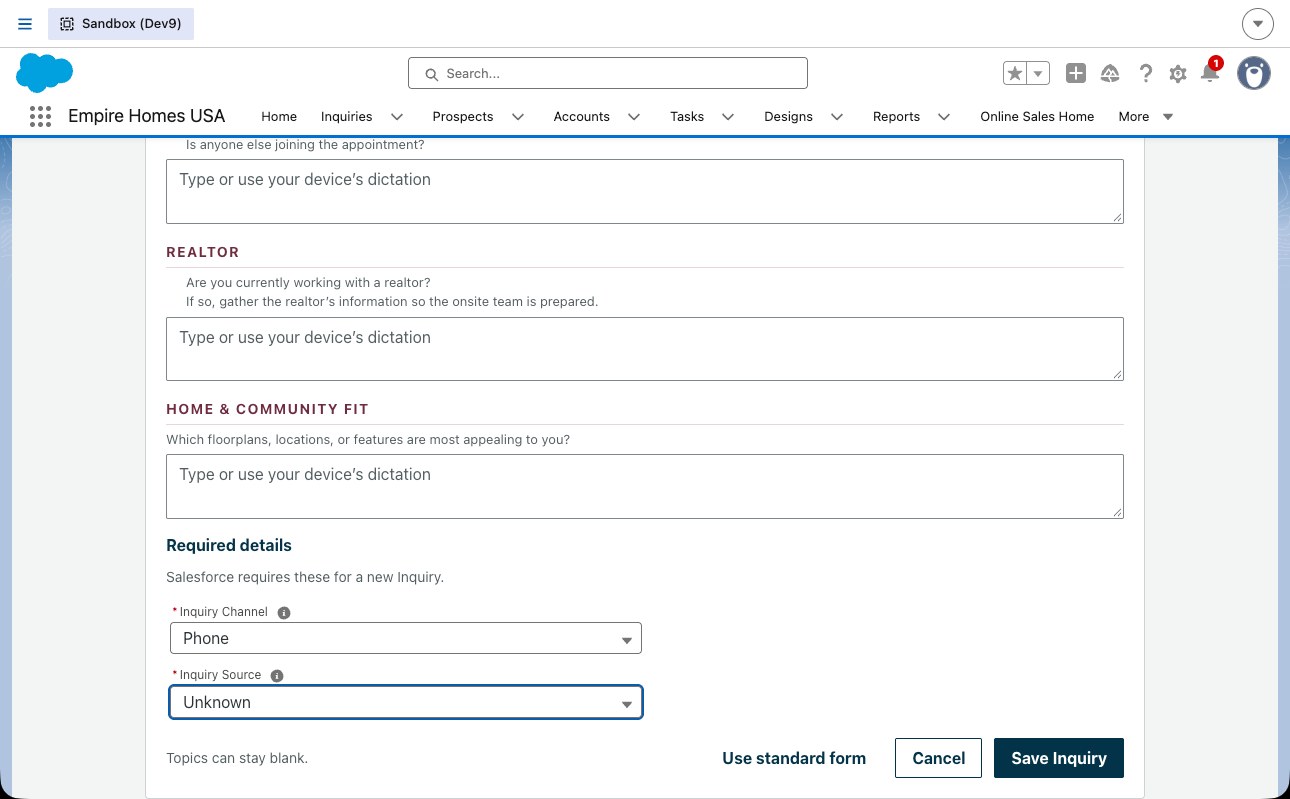
| 6 | Mandatory field mapping on create | Create with the guided New Inquiry form. Reopen the record: First Name, Last Name, Phone, Email, Channel, Source, Site and Owner are filled. |
| 7 | Notes to key fields | Type "budget 500 to 600" in the Inquiry notes, save, wait a minute, reopen. Budget shows the 500 to 600 band. |
| 8 | Mobile app available | Sales Cloud Mobile from the app store. Already in use by the pilot team. |
| 9 | Record Conversation available to assigned users | Sales Agent Home on the phone shows Record Conversation. The Inquiry full record shows the Record button. |
Test 1 · Create an Inquiry with the New Inquiry button (rows 10, 16, 22, 25, 28)
Desktop
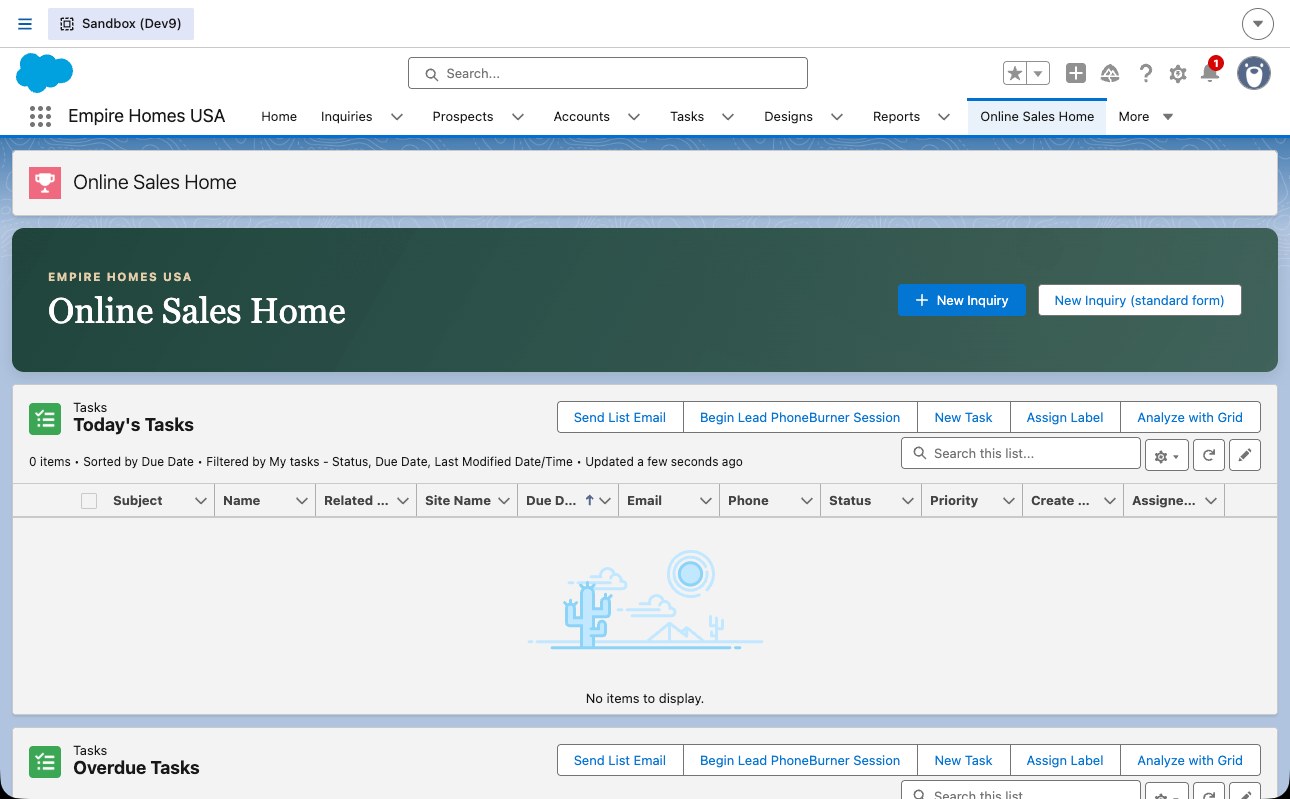
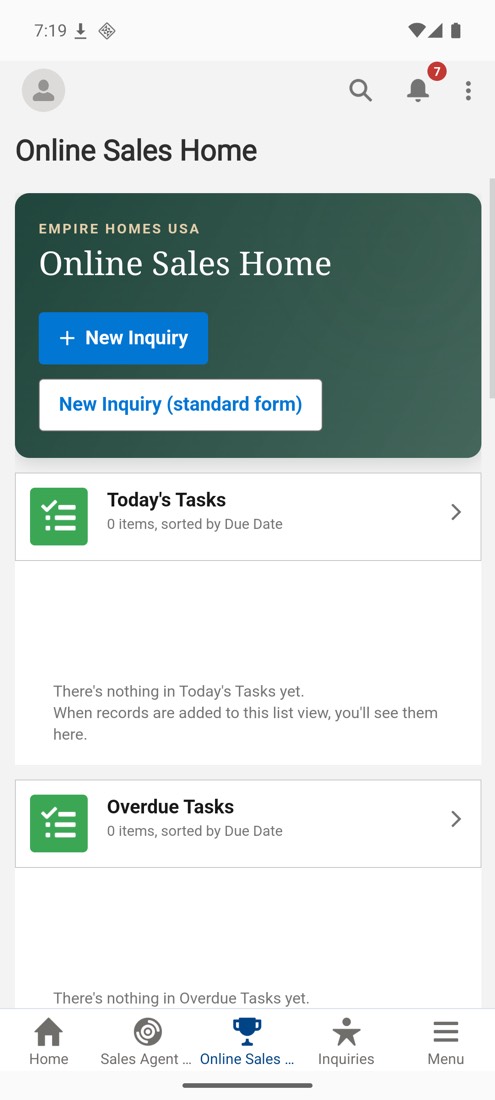
- Open the Empire Homes USA app. Home shows Online Sales Home for OSCs, Sales Agent Home for agents.
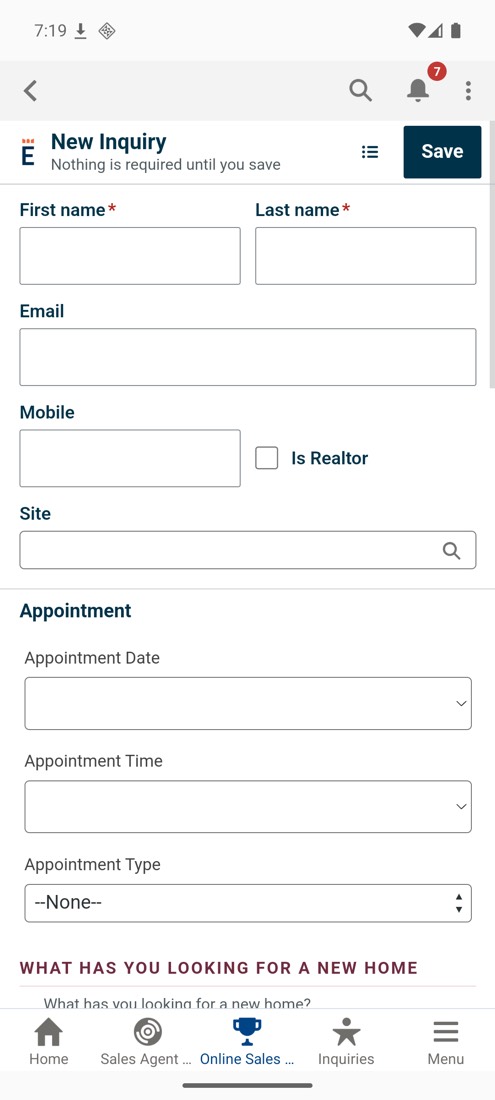
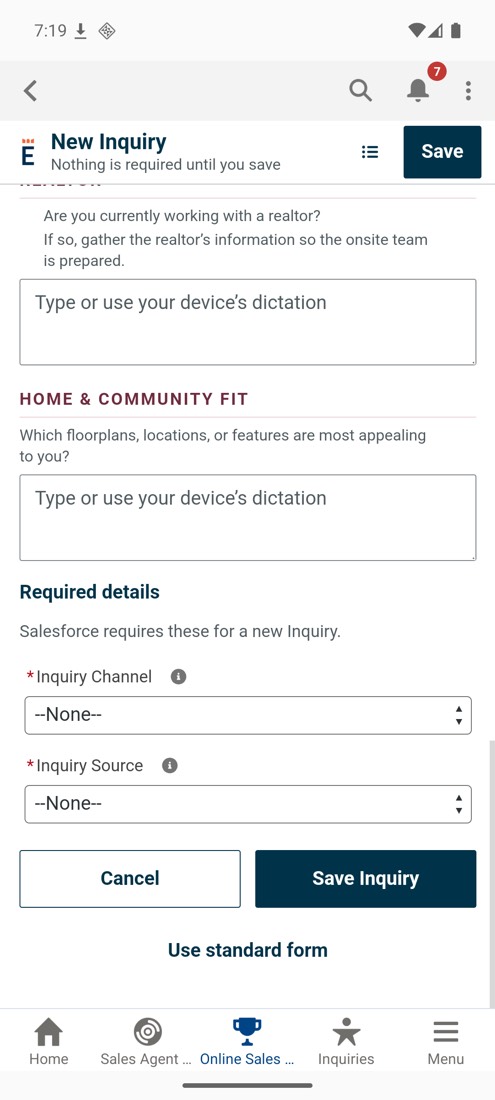
- Click New Inquiry (guided). Fill First Name, Last Name, Phone, Email, Site. Save.
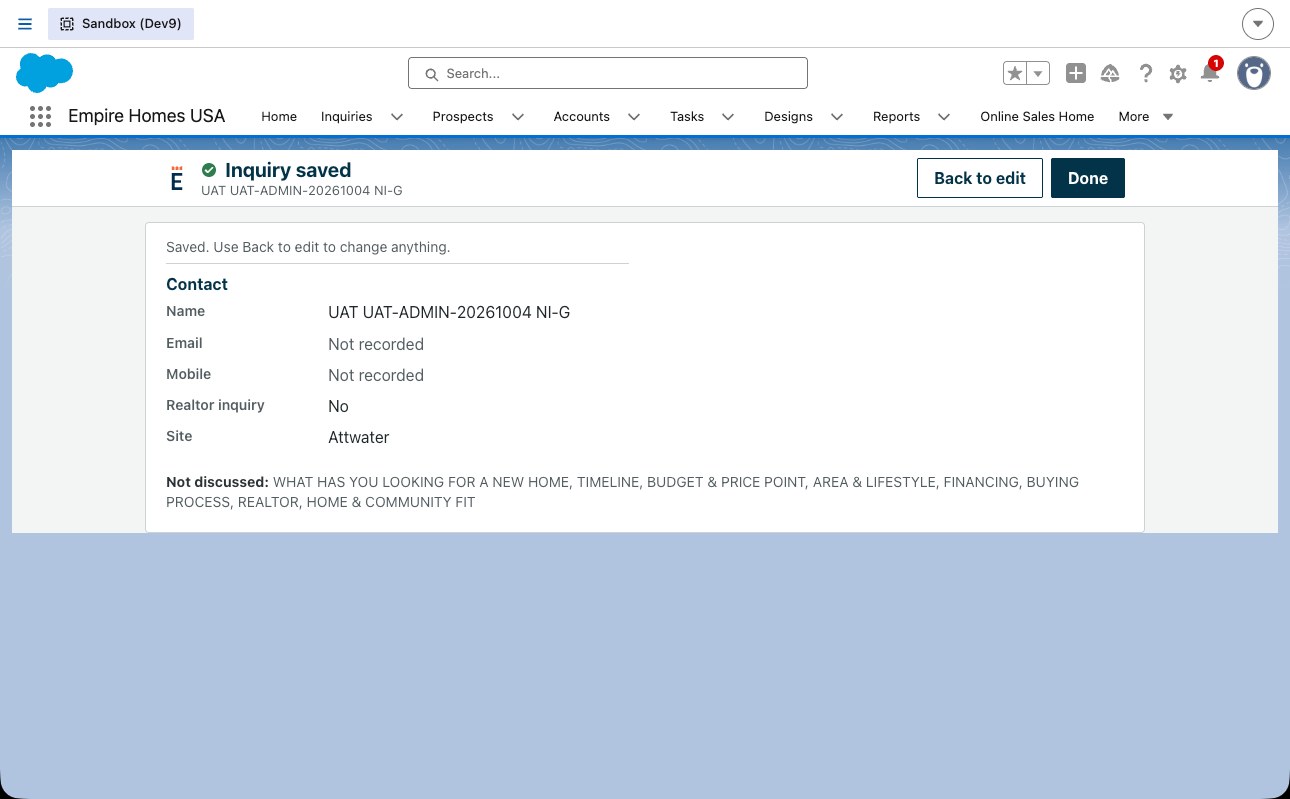
- The new Inquiry opens on the new layout: status path, key fields, Capture tab.
Phone
- Sales Cloud Mobile. Home. Tap New Inquiry.
- Fill the same fields. Save. The Inquiry summary card opens.
Look for
- Last Name missing gives a required error.
- Reopen the record: Phone, Email, Channel, Source, Site and Owner are filled (row 6).
Known: the owner may change to the OSC queue through the client's assignment rules. That is existing behaviour.
Test 2 · Record a conversation on an existing Inquiry (rows 11, 17, 29)
Phone only
- Sales Cloud Mobile. Open the Inquiry. Tap View Full Record. Tap Record.
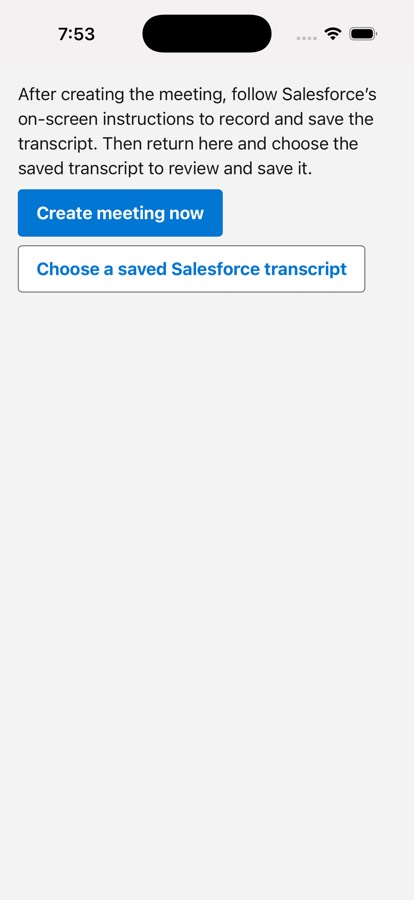
- Tap Create meeting now. The app creates the meeting and opens the Home tab.
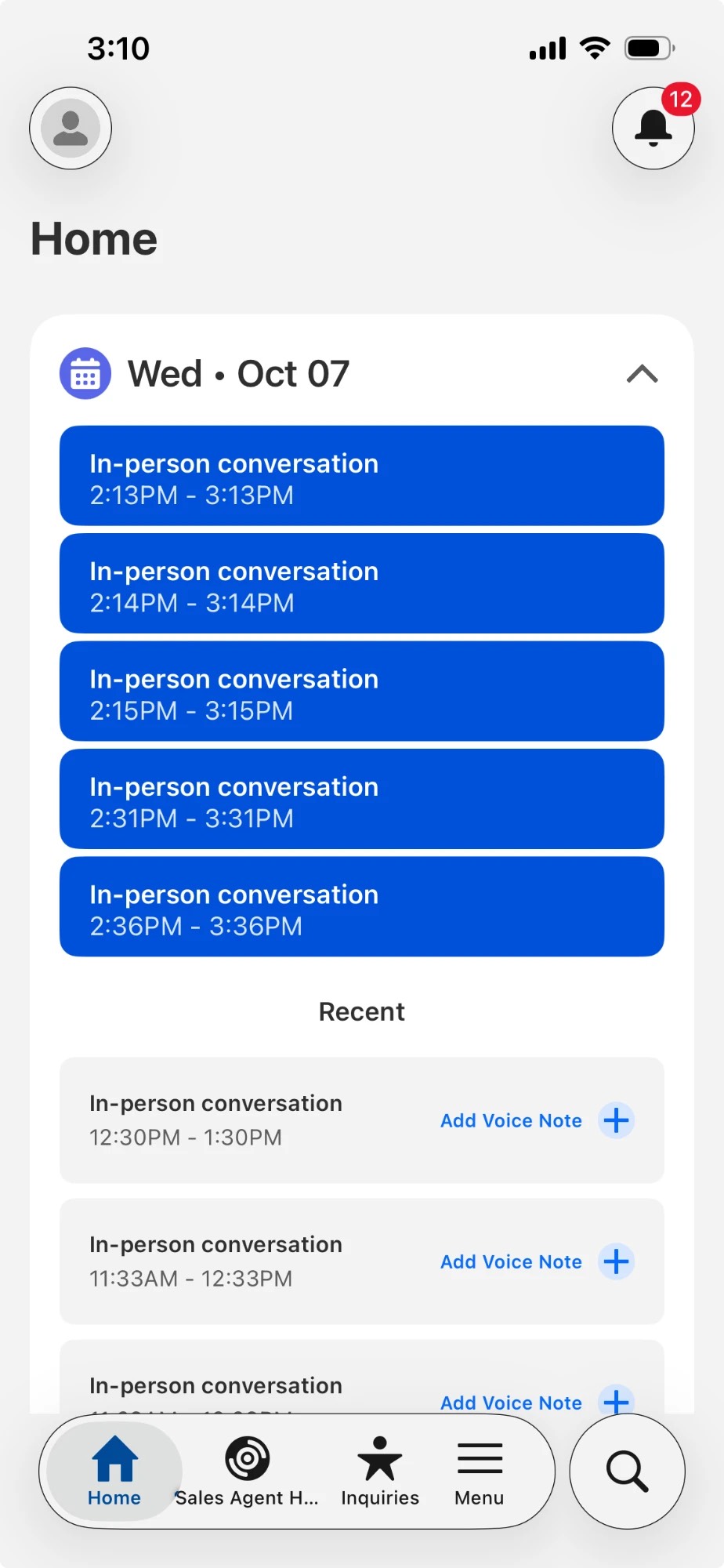
- On the Home tab, tap the In-person conversation card with the current time. Pull down to refresh if it is not shown.
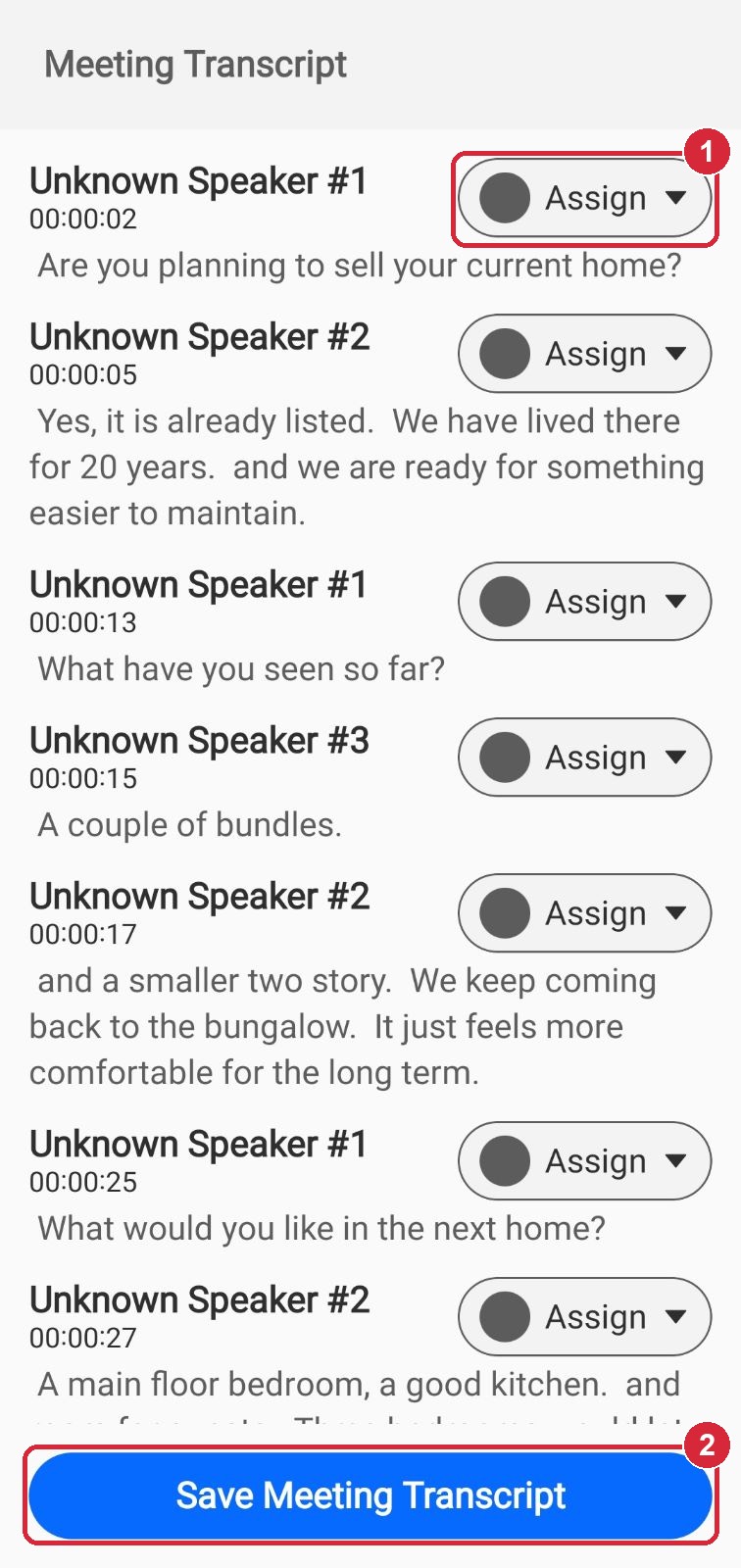
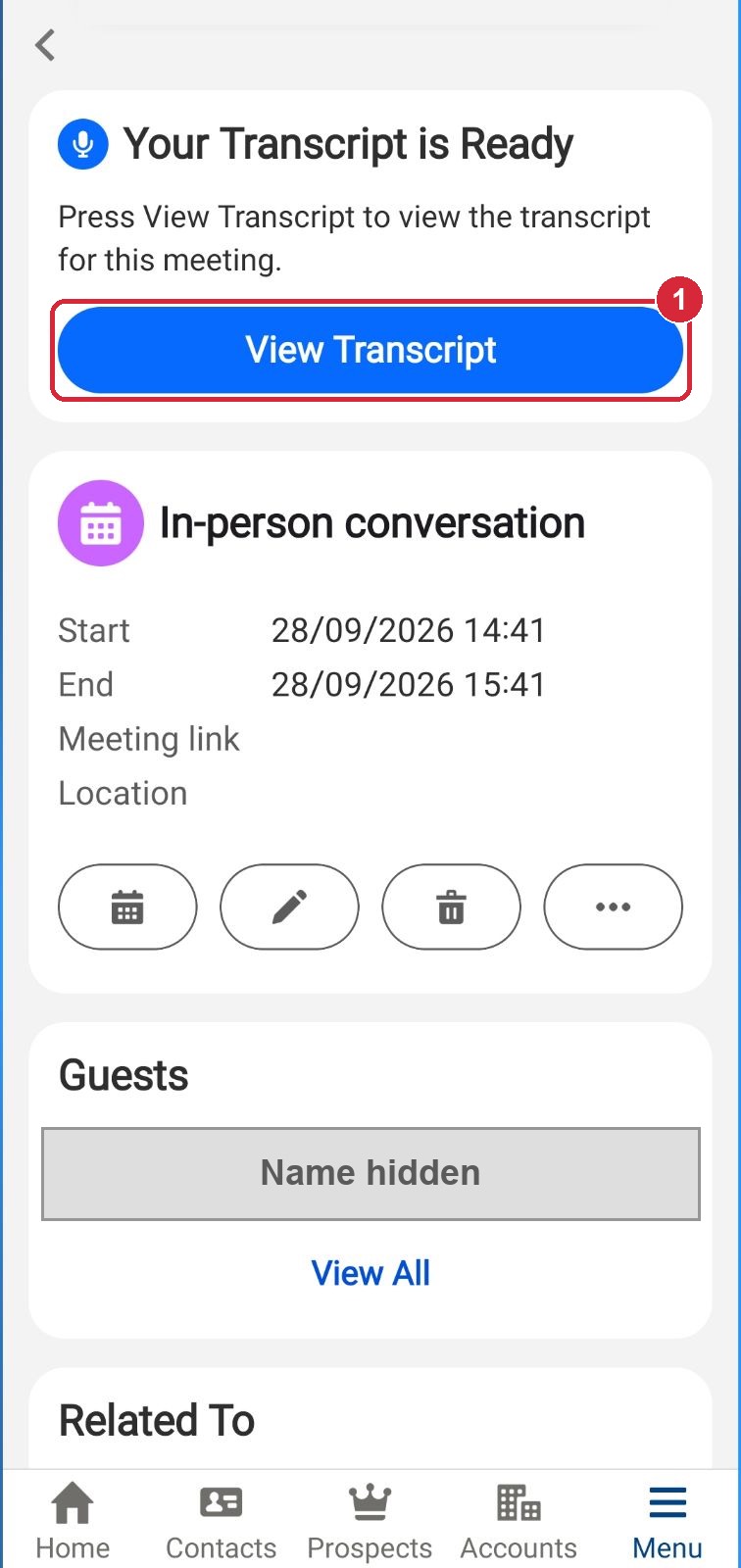
- Tap Launch In-Person Meeting Assistant. Tick the consent box. Tap Start. Speak. Tap Stop Transcribing. Tap Save Meeting Notes. "Transcript is ready" appears. The recording is now saved in Salesforce. Nothing else happens by itself.
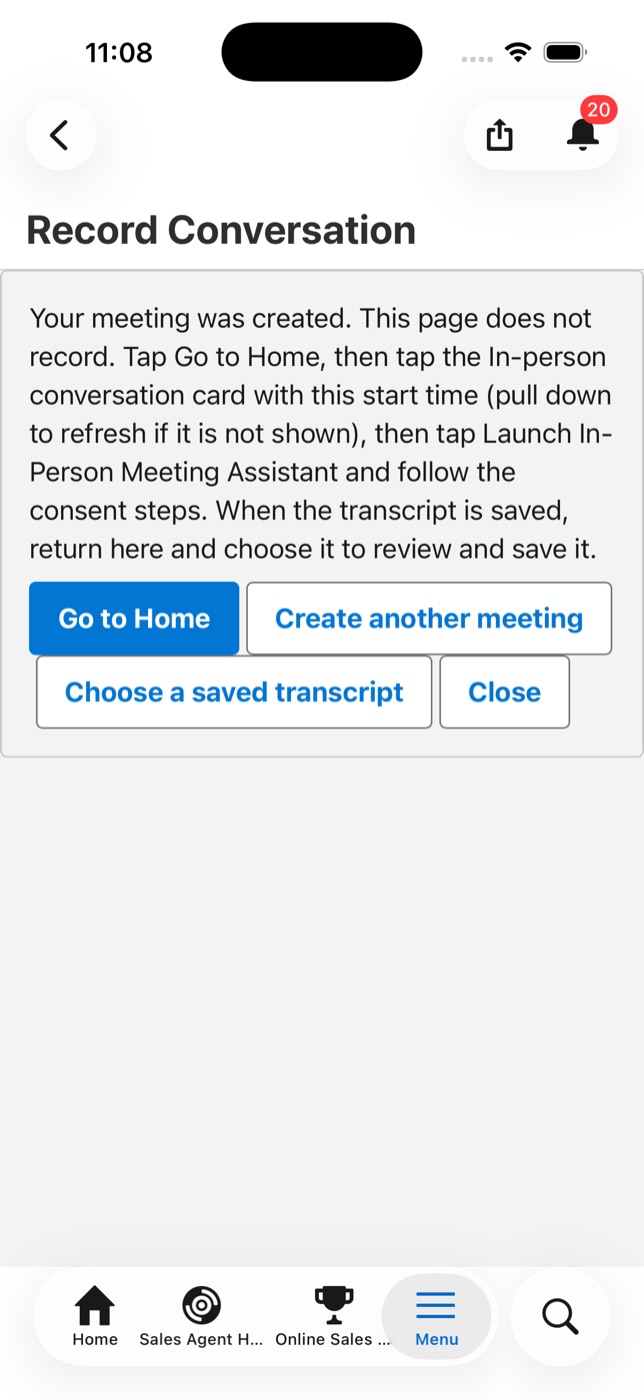
- Open the Inquiry again: View Full Record, then Record. The page now says "Your meeting was created". Tap Choose a saved transcript.
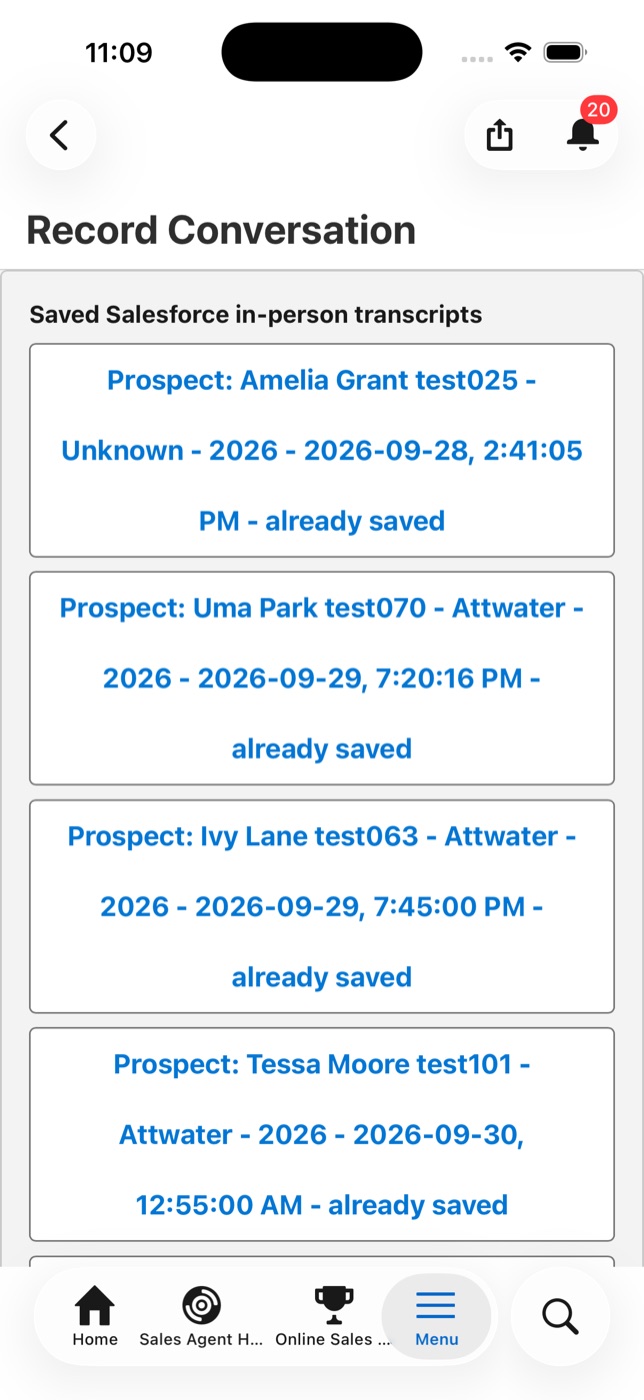
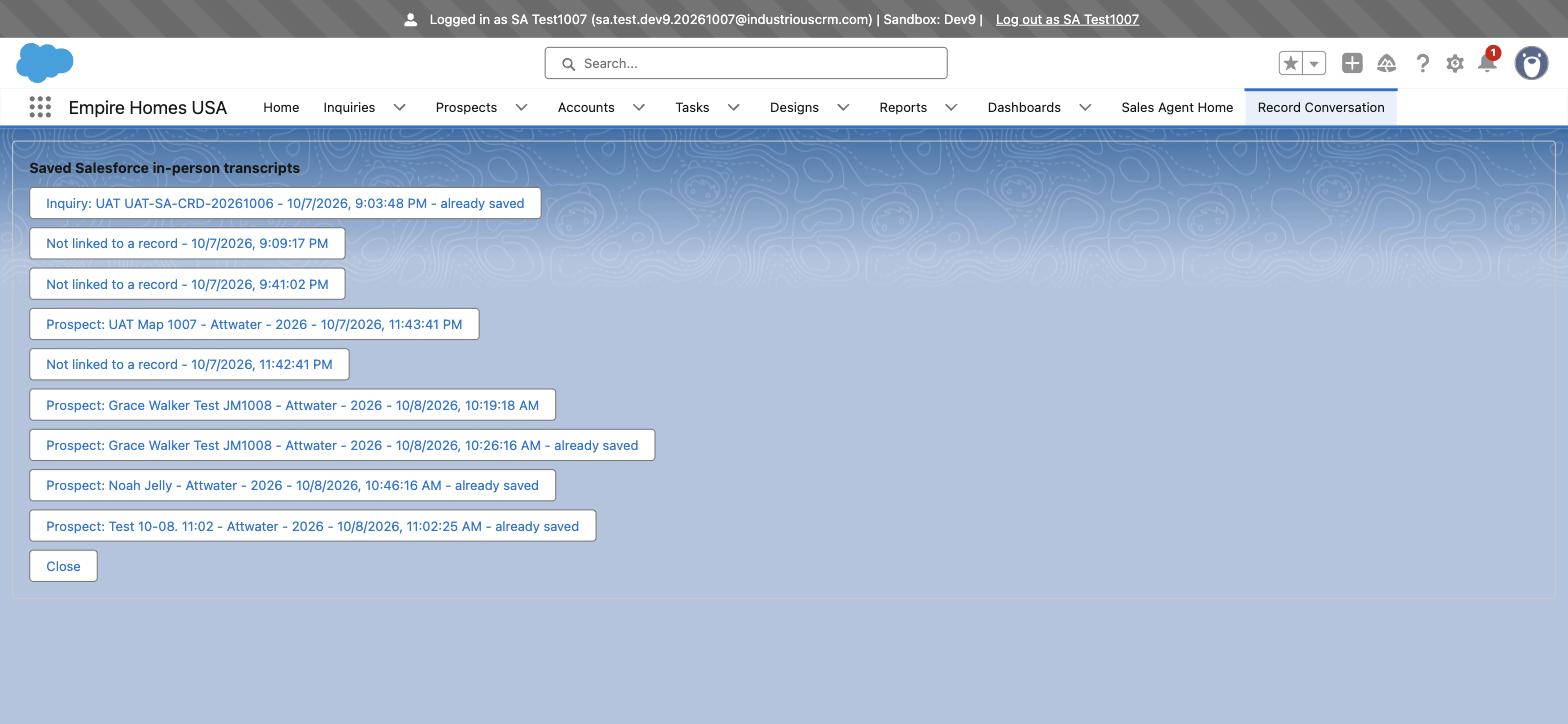
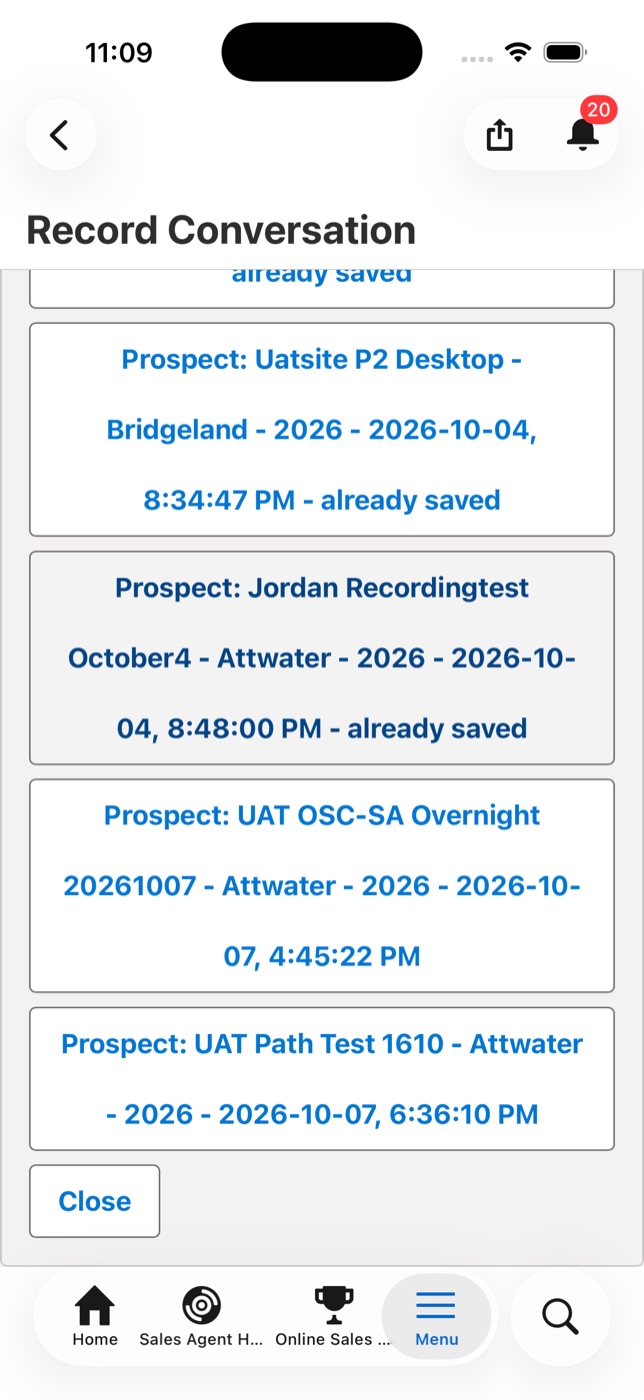
- In the list, tap the entry with your meeting time. Entries marked "already saved" are earlier recordings.
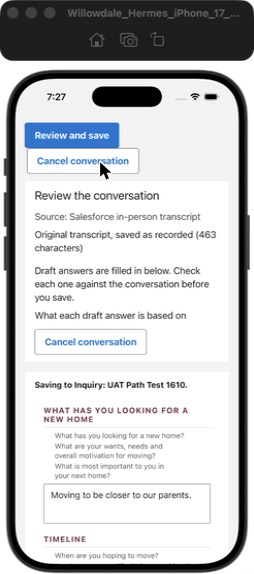
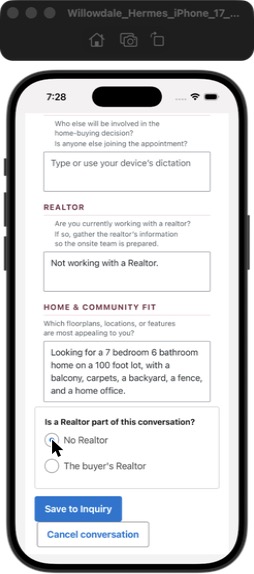
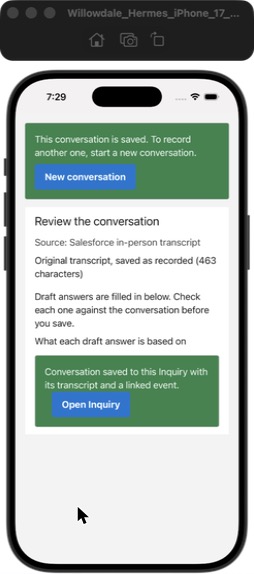
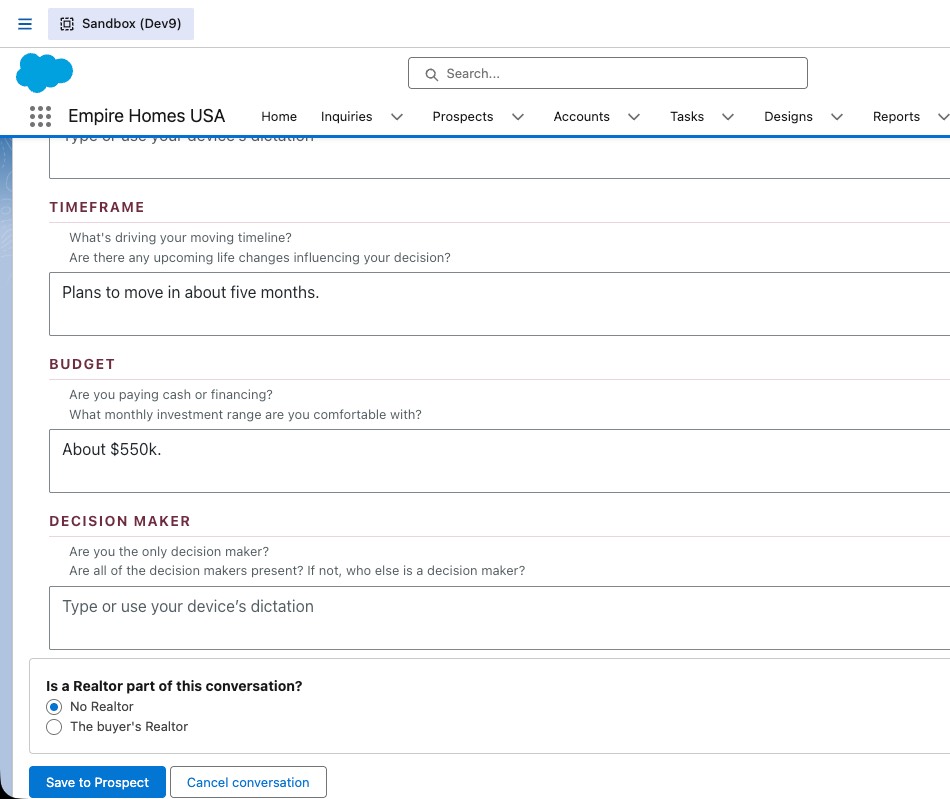
- Read the transcript and the drafted answers. Pick No Realtor or The buyer's Realtor. Tap Save to Inquiry.
Look for
- Saved banner, then the Inquiry notes filled and the transcript linked.
- Key fields update within a minute.
Desktop path (record on the phone, finish on the desktop)
- Do steps 1 to 4 on the phone, up to "Transcript is ready".
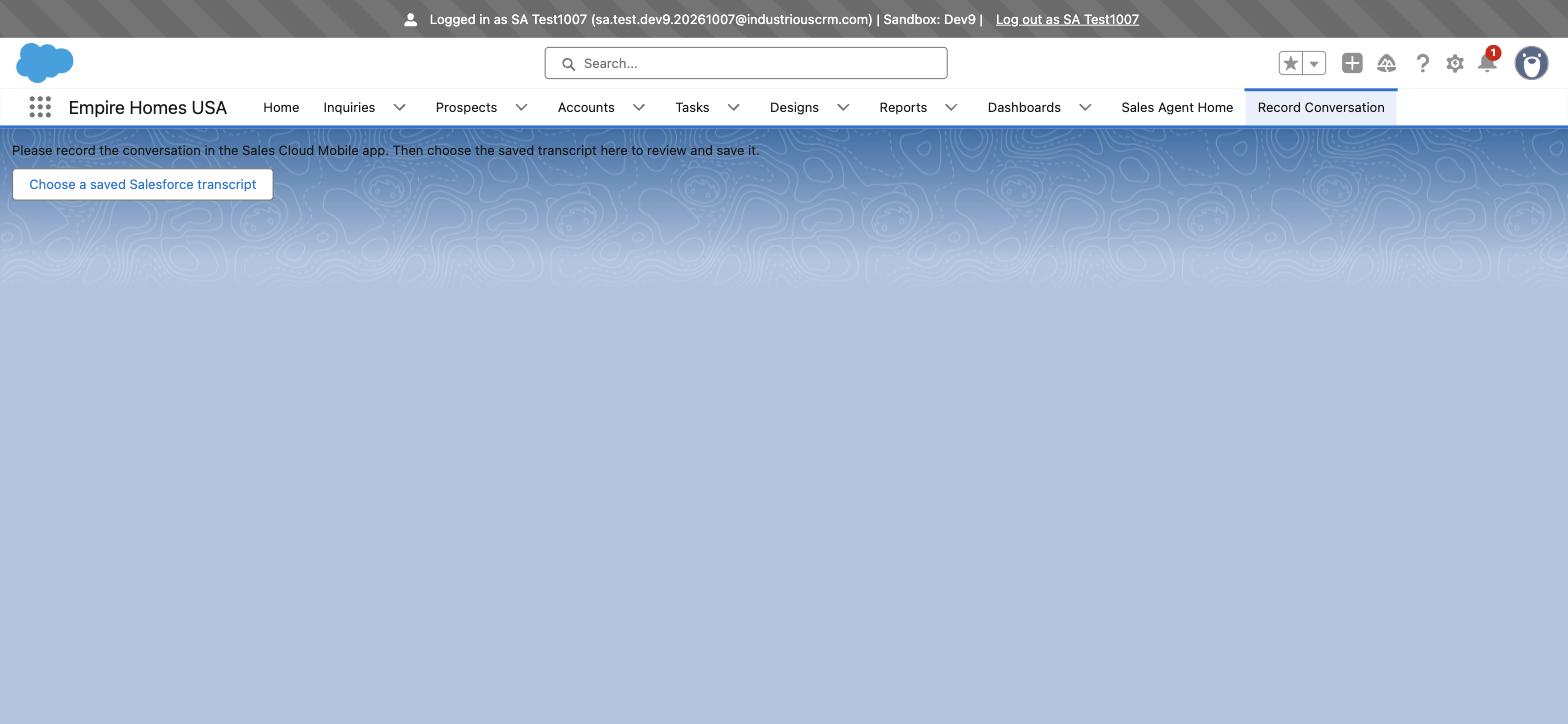
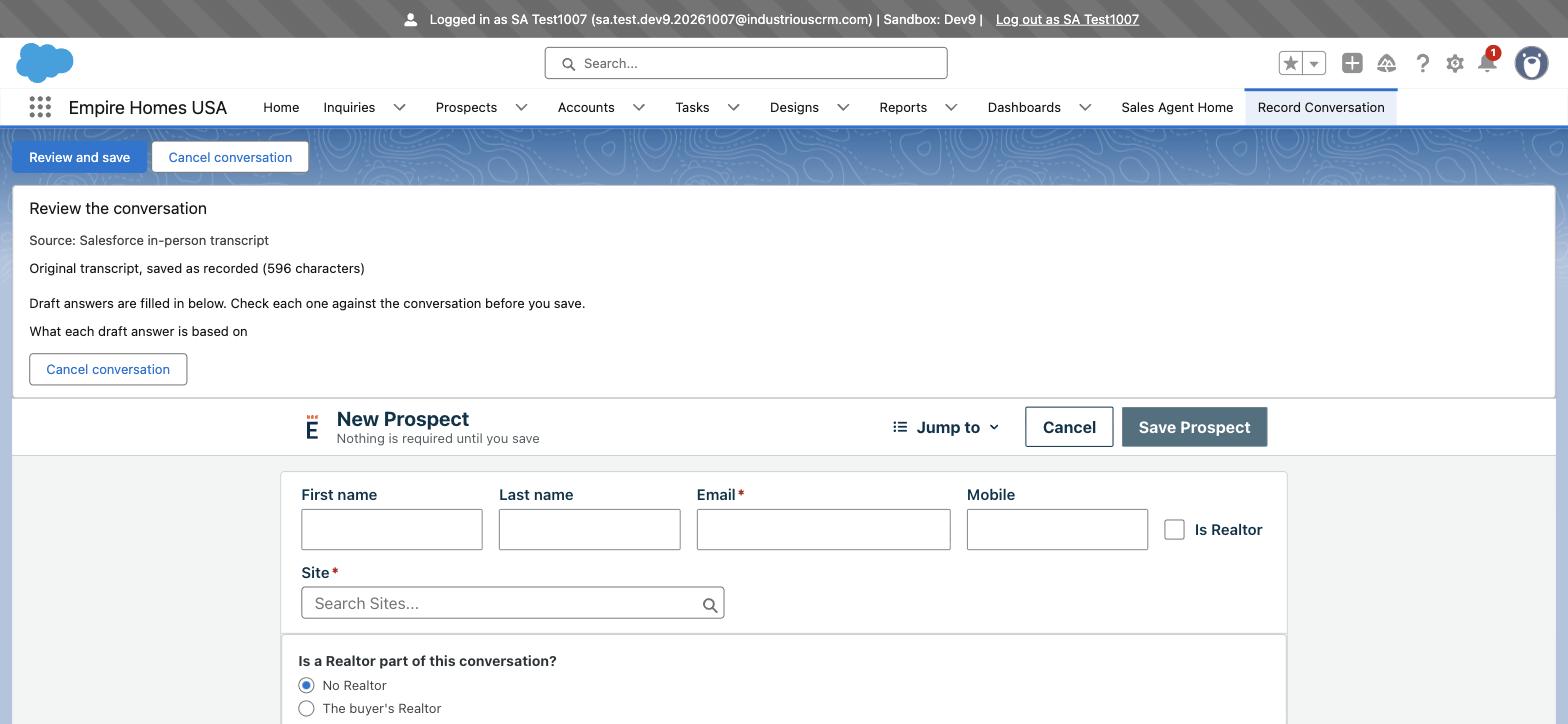
- On the desktop, open the Empire Homes USA app. Click the Record Conversation tab (not the Record button on the Inquiry; that button only points to the phone).
- Click Choose a saved Salesforce transcript. Click the entry with your meeting time. An entry marked "Not linked to a record" is a recording that is not yet attached to anything.
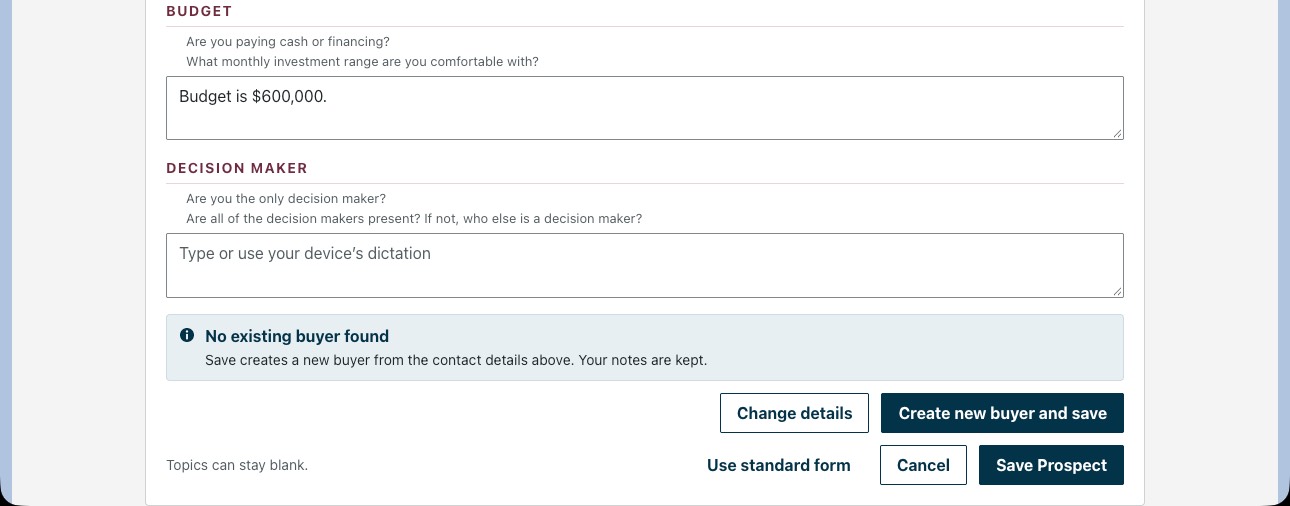
- The transcript and the drafted answers open over a New Prospect form. Enter the buyer's name and email and the Site. Click Save Prospect.
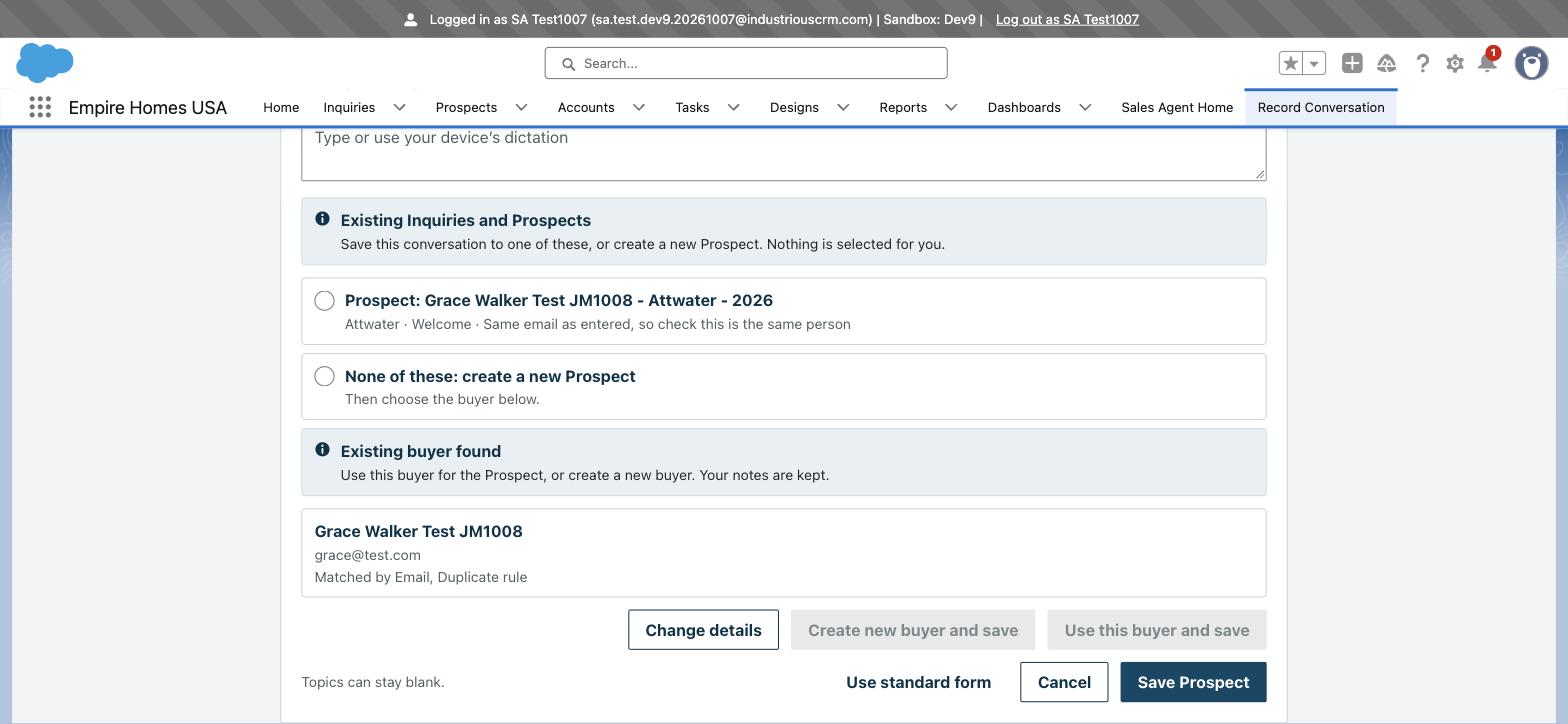
- The page lists the matching Inquiry or Prospect for that email. Pick the existing record to attach the conversation to it, or pick None of these to create a new Prospect. Then click Use this buyer and save.
If you do not see Choose a saved transcript, close the app fully and reopen it. If the page shows only Create another meeting and Close, tap Close, then tap Choose a saved Salesforce transcript.
Where the recording is: it does not open by itself after Save Meeting Notes. It waits in the list under Choose a saved transcript; open it there to read the transcript. On the day of the meeting, the meeting card on the Home tab also opens the Meeting Assistant tools with View Transcript. Record on desktop only tells the user to use the phone. The Home list shows five current meetings at most. A phone user who was just given permissions must log out and in once.
Test 3 · Record a conversation for someone not in the system; a Prospect is created (rows 12, 18, 30)
Phone only
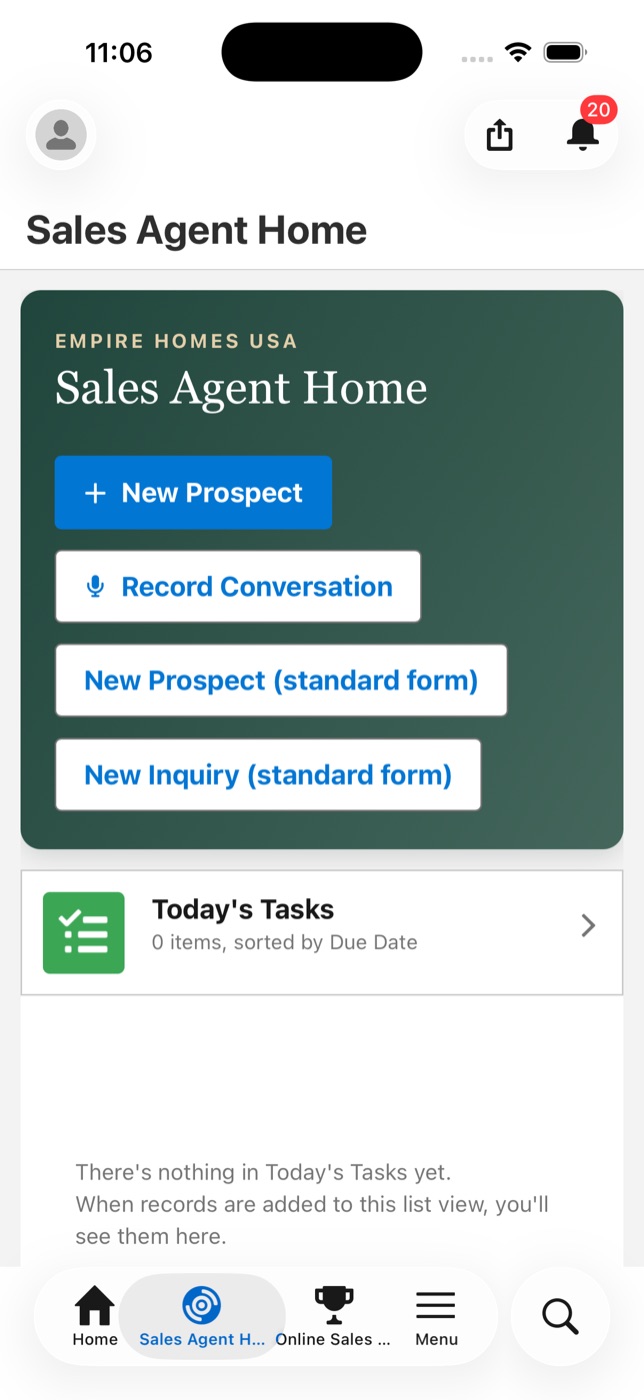
- Sales Cloud Mobile. Tap the Sales Agent Home tab (or Online Sales Home). Tap Record Conversation. The app creates the meeting and opens the Home tab.
- On the Home tab, tap the In-person conversation card with the current time. Pull down to refresh if it is not shown.
- Tap Launch In-Person Meeting Assistant. Tick the consent box. Tap Start. Speak. Tap Stop Transcribing. Tap Save Meeting Notes. "Transcript is ready" appears. The recording is now saved in Salesforce. Nothing else happens by itself.
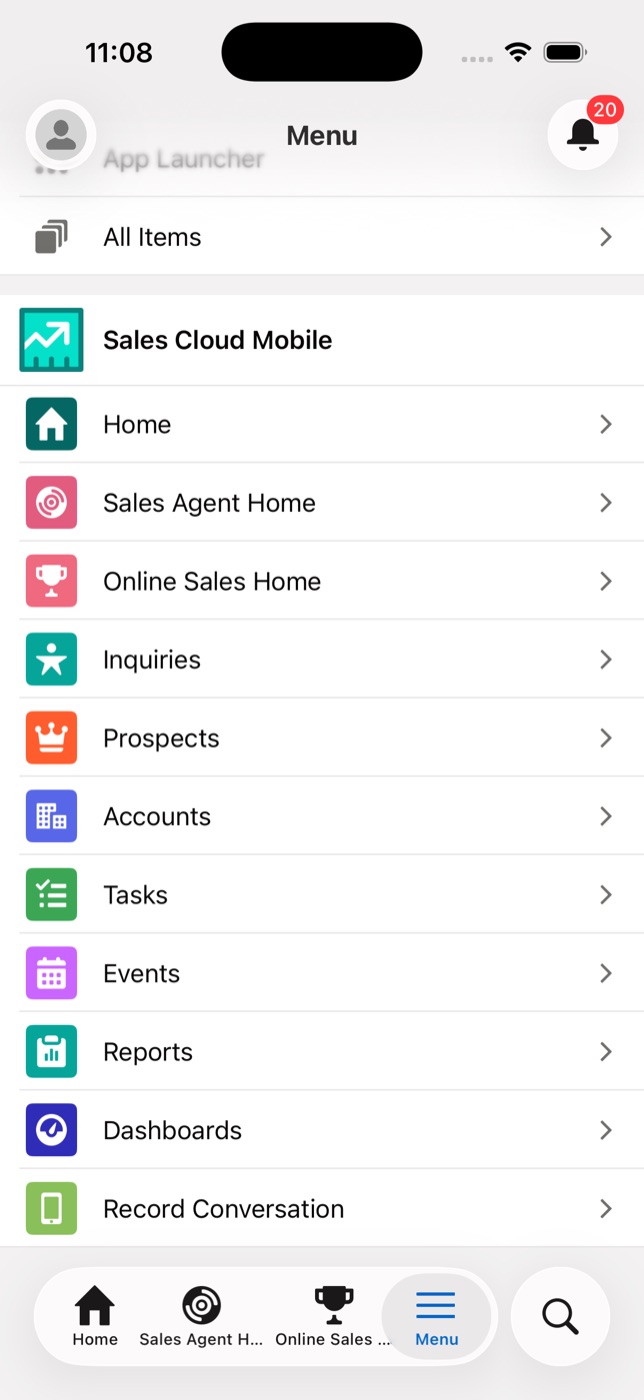
- Tap Menu at the bottom, then Record Conversation. The page says "Your meeting was created" and shows four buttons. Tap Choose a saved transcript.
- In the list, tap the entry marked "Not linked to a record" with your meeting time. Entries that start with a name belong to an existing Inquiry or Prospect.
- The review shows the transcript and the drafted answers. No existing buyer matches: enter the buyer's name and email. Pick No Realtor or The buyer's Realtor. Tap Save.
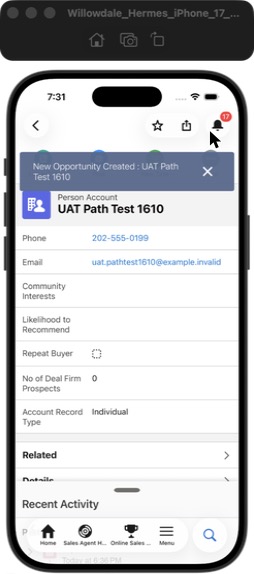
- The app creates the Prospect, with its Person Account and Contact, with the notes and the transcript linked. Open it from the Prospects tab.
Desktop path (record on the phone, finish on the desktop)
- Do steps 1 to 3 on the phone, up to "Transcript is ready".
- On the desktop, open the Empire Homes USA app. Click the Record Conversation tab. Click Choose a saved Salesforce transcript.
- Click the entry marked "Not linked to a record" with your meeting time. The transcript and the drafted answers open over a New Prospect form.
- Enter the buyer's name, email and Site. Check the drafted answers. Click Save Prospect.
- If the email matches an existing buyer, the page shows that buyer's Inquiries and Prospects. Pick one to attach the conversation, or pick None of these for a new Prospect. Click Use this buyer and save, or Create new buyer and save.
Look for
- The new Prospect opens at stage Welcome with the Capture section filled.
If you do not see Choose a saved transcript, close the app fully and reopen it. If the page shows only Create another meeting and Close, tap Close, then tap Choose a saved Salesforce transcript.
Where the recording is: it does not open by itself after Save Meeting Notes. It waits in the list under Choose a saved transcript; open it there to read the transcript. On the day of the meeting, the meeting card on the Home tab also opens the Meeting Assistant tools with View Transcript.
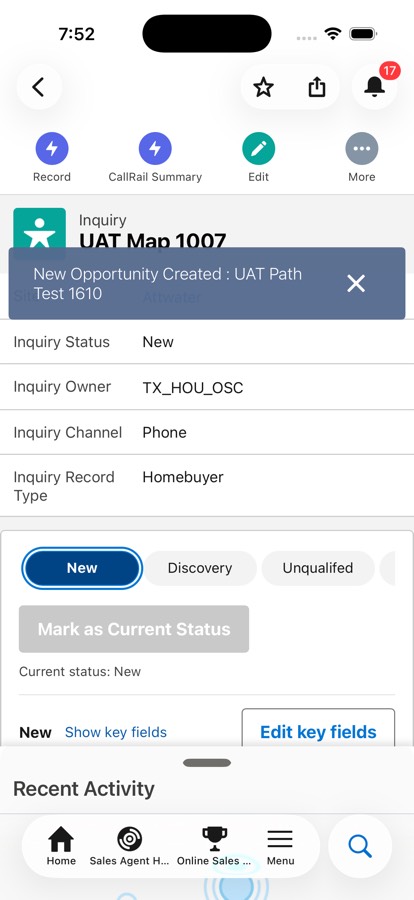
Known: an Inquiry converted on the phone needs the Prospect name typed in the Convert screen. The app now says so after the save. Convert on desktop prefills it.
Test 4 · Add notes to an existing Inquiry with Capture (rows 13, 19, 23, 26, 31)
Desktop
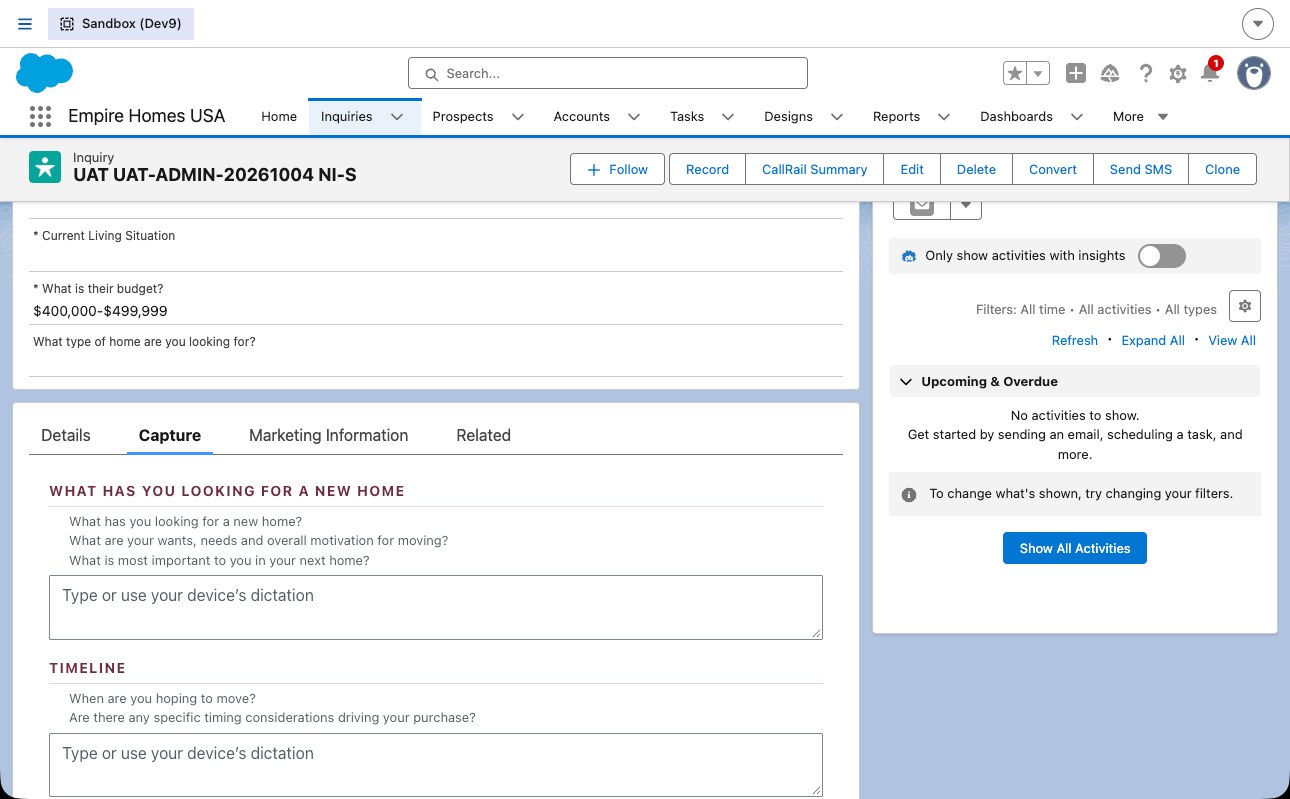
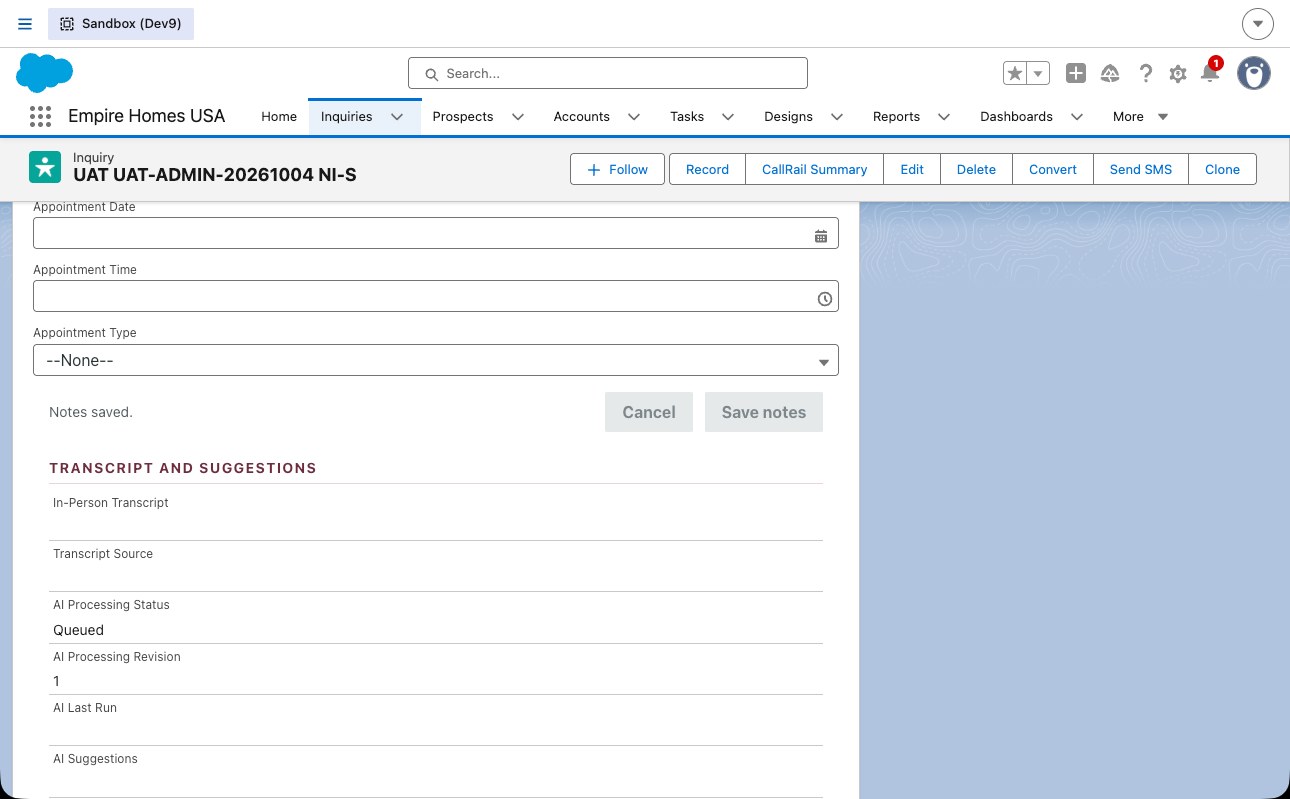
- Open the Inquiry. Click the Capture tab.
- Type in any of the eight boxes, for example "Budget around 550k, wants 4 bedrooms, moving in spring". Save notes.
Phone
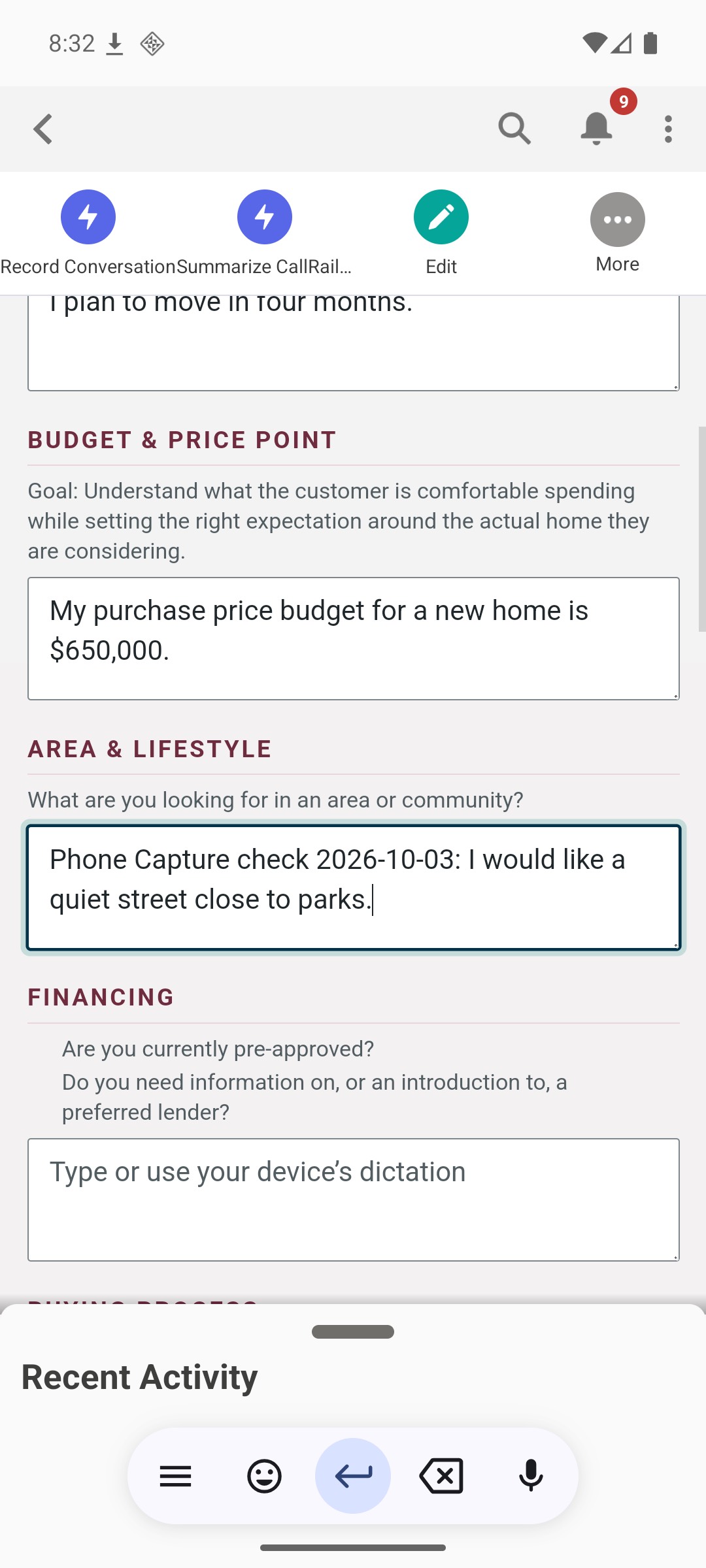
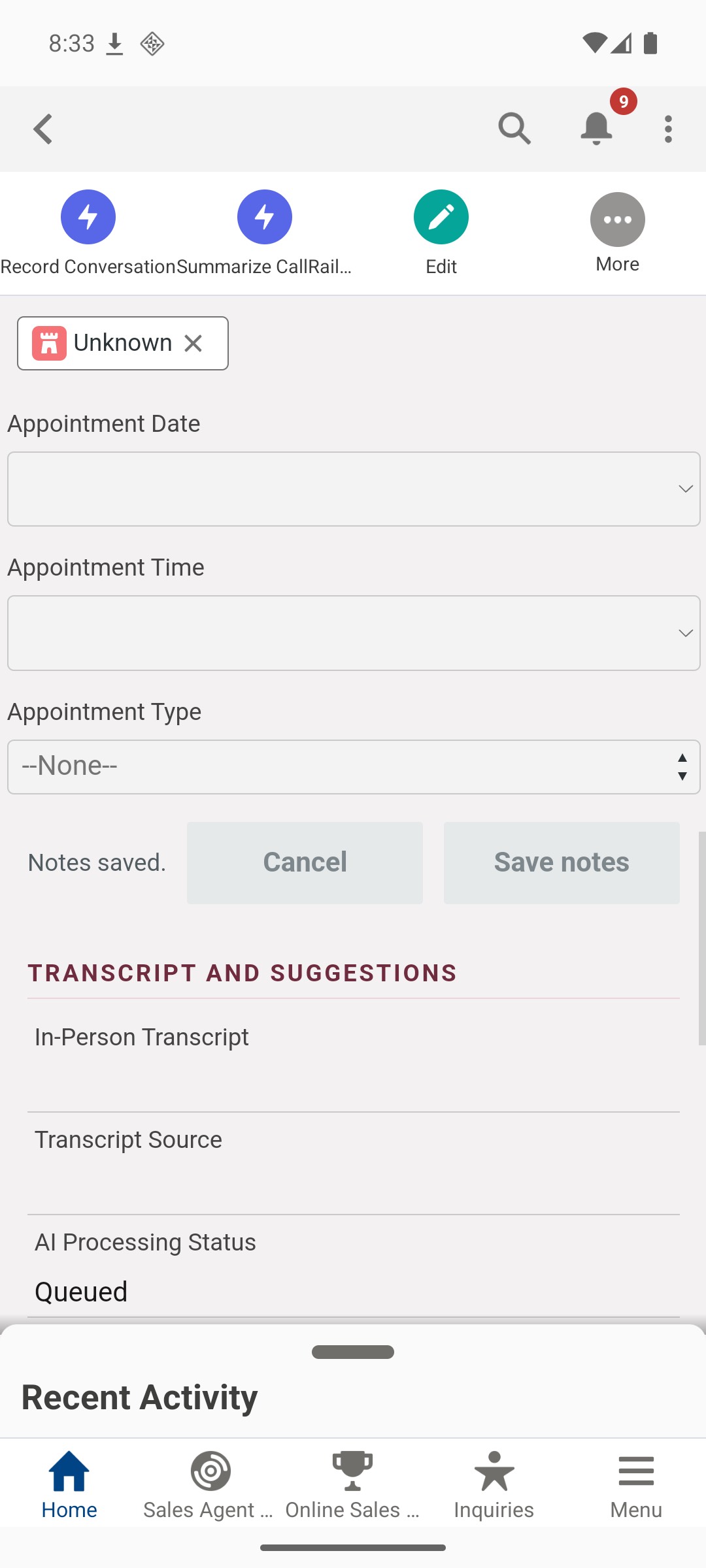
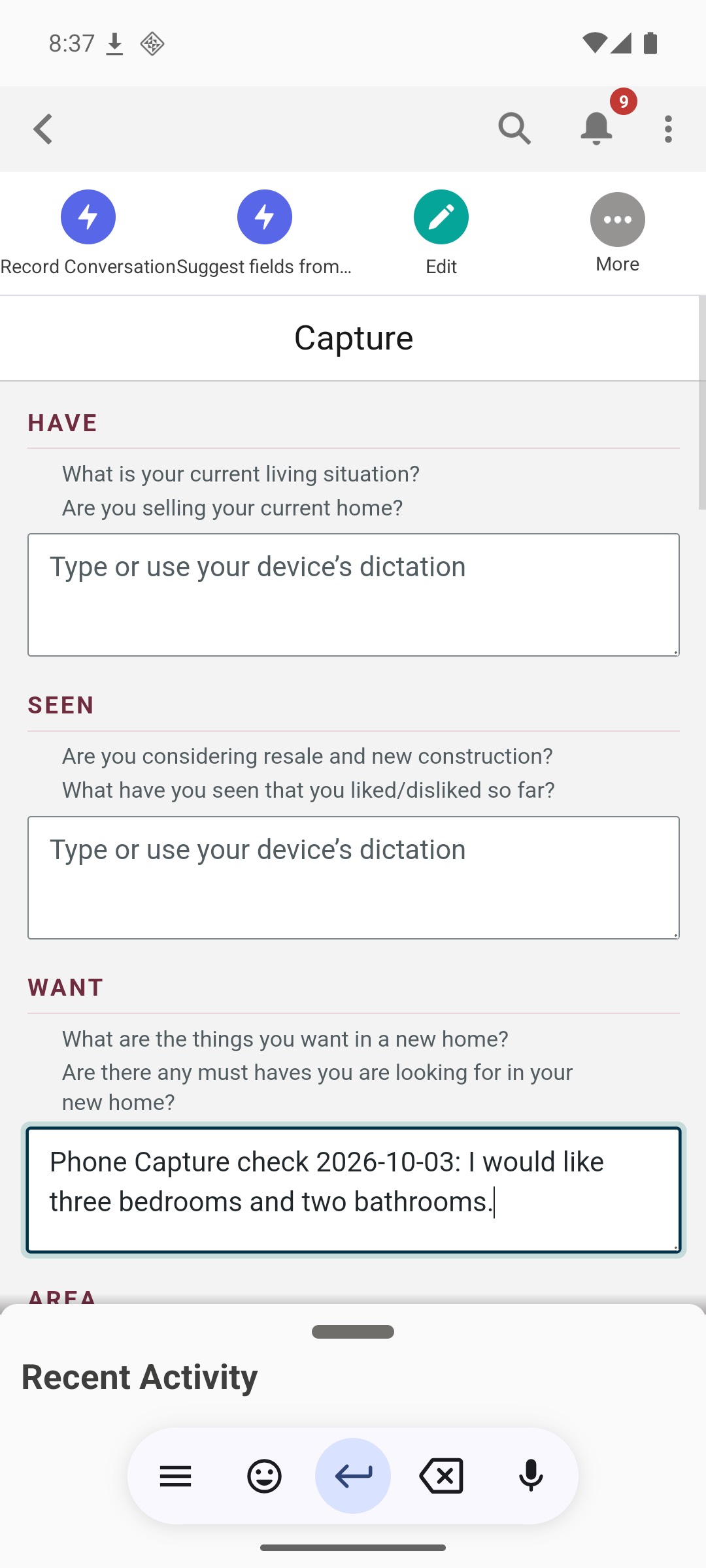
- Open the Inquiry. Tap the Capture row. Type. Save.
Look for
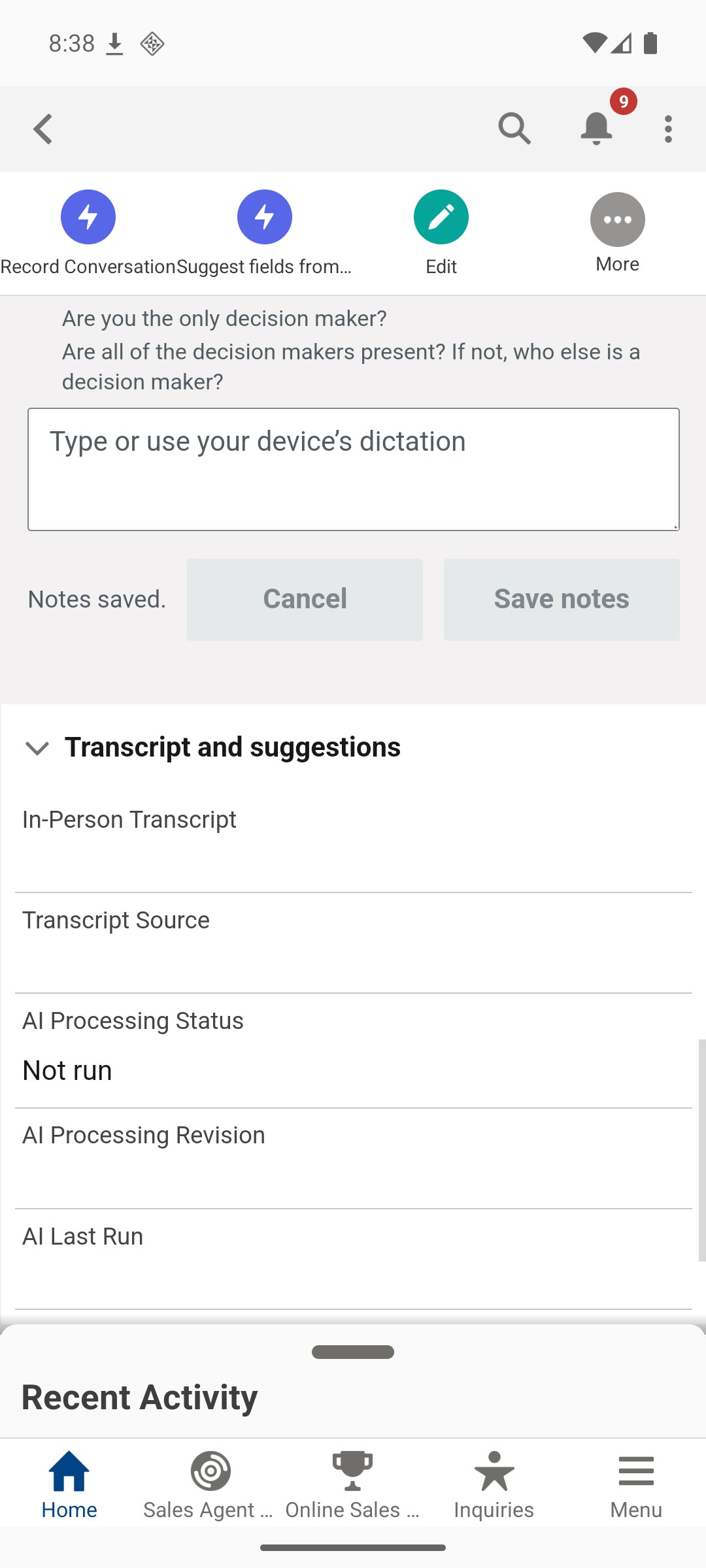
- "Notes saved." Reopen: the text is kept. Untouched boxes stay as they were.
Test 5 · Add notes to an existing Prospect with Capture (rows 14, 20, 32)
Desktop and phone
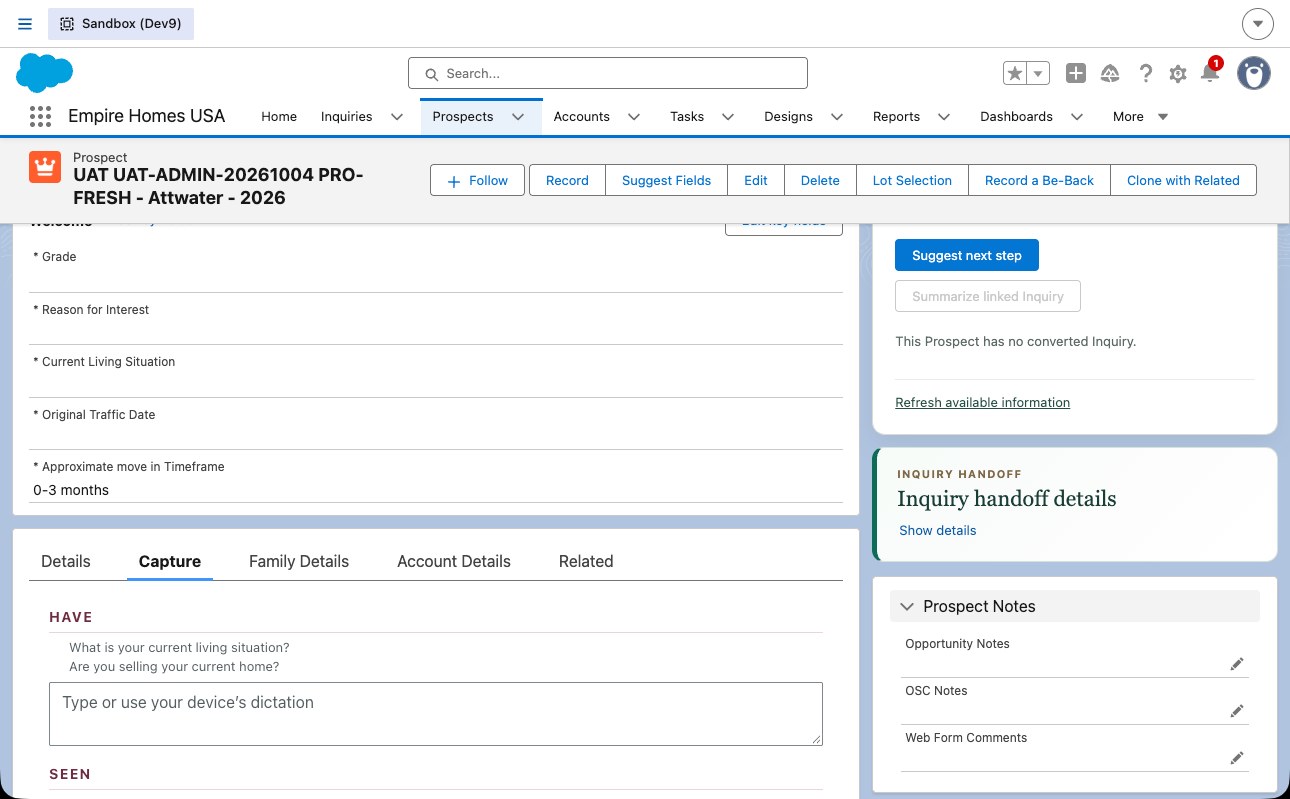
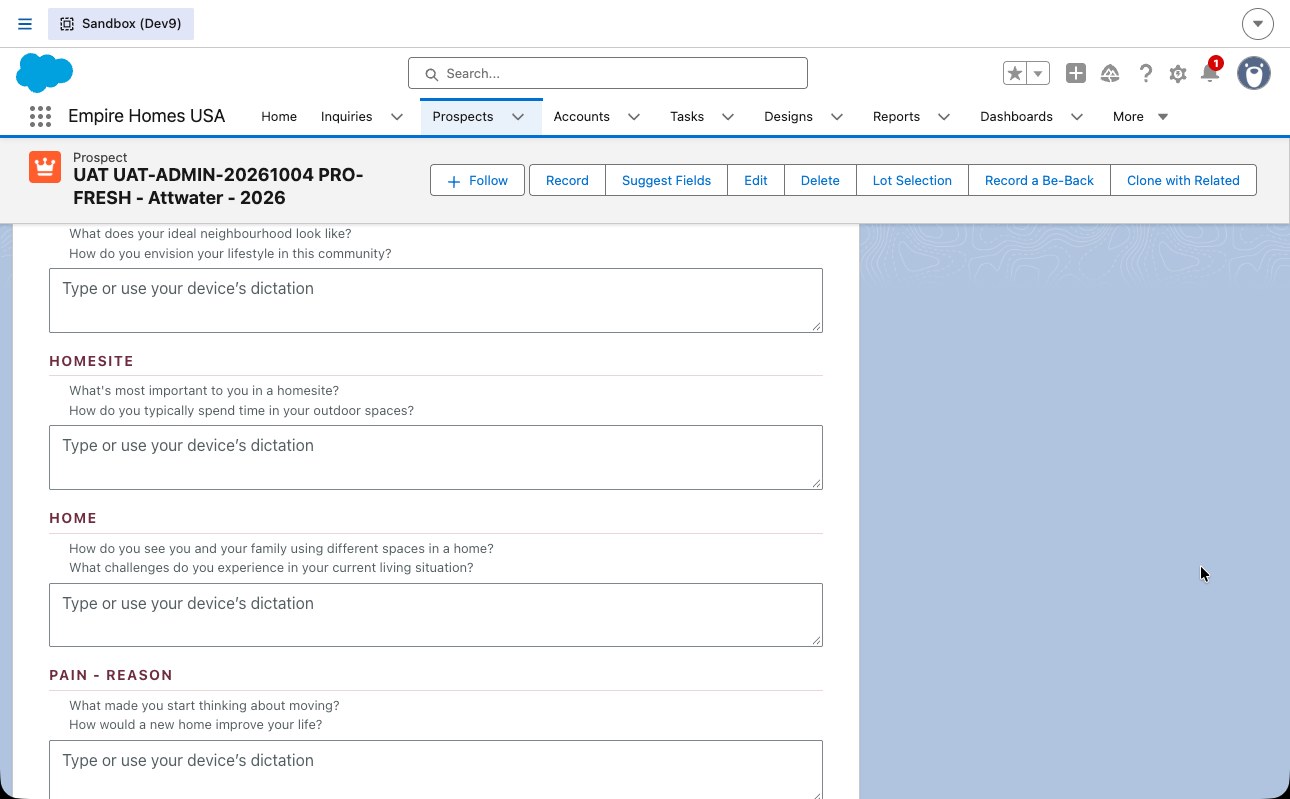
- Open the Prospect. Capture section. Twelve boxes. Type. Save notes.
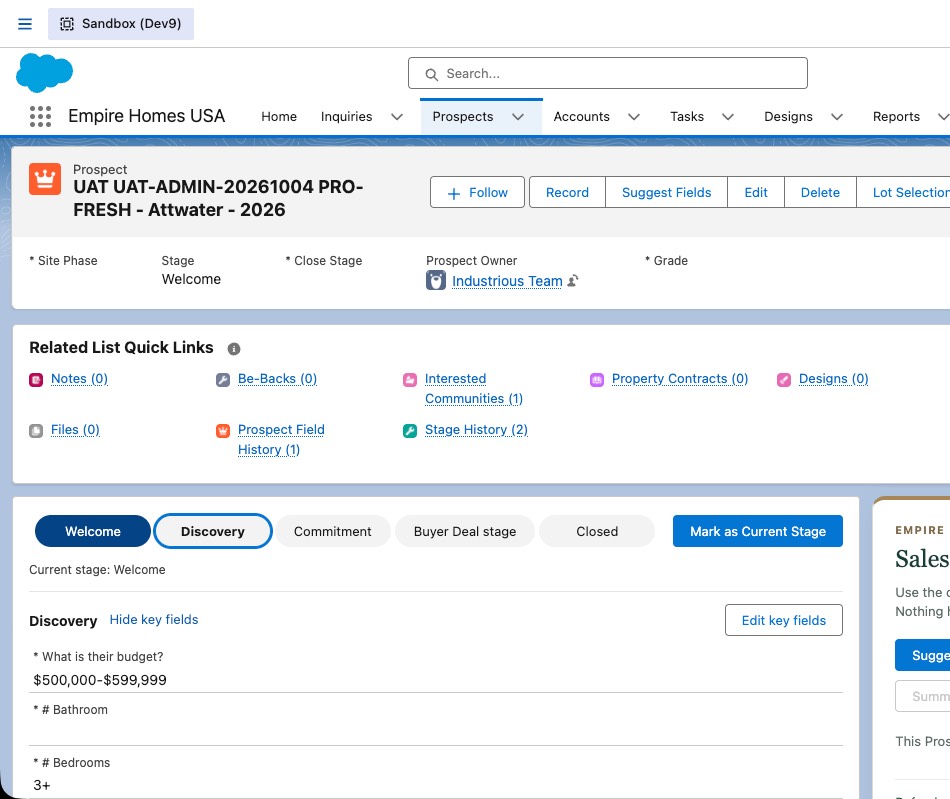
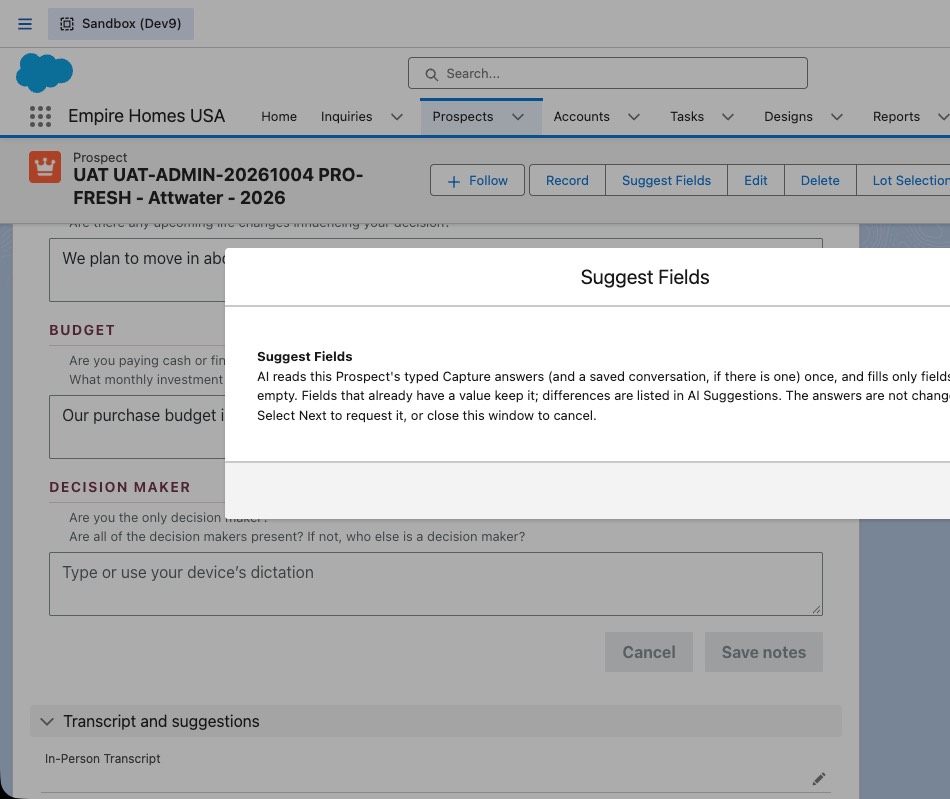
- The AI does not run on a Prospect save. To get suggestions, click Suggest Fields, confirm, wait, and read the suggestions panel.
Look for
- Notes kept after reopen. Suggest Fields fills only empty key fields and shows what it used.
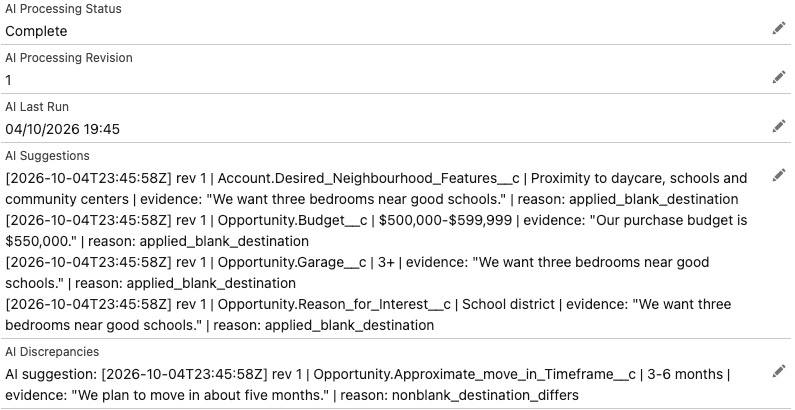
Test 6 · Notes and transcript to key fields (rows 15, 21, 24, 27, 33)
Inquiry
- After a Capture save or a transcript save, wait about a minute. Refresh. If the Site was set after the answers, click Suggest Fields next to Record, confirm, and wait a minute.
- Budget, bedrooms, move-in timing, home type and the other key fields show the values from the notes. Budget "500 to 600" picks the 500 to 600 band (row 7).
Prospect
- Suggest Fields does the same on demand.
Look for
- Only empty fields are filled. Values a person typed are kept.
- Name, phone, email, Site and the Realtor flag are never changed by the AI. That is by design.
Known: queue-owned Inquiries do not run the AI until a person owns them. A user without a pilot persona never triggers the AI.